Deploy and Activate
This page describes how to deploy CLS in the customer environment, complete online or offline licensing, and connect TDengine TSDB / IDMP instances to CLS. For architecture and the quota model, see License Center Reference and Quotas and Slots.
Deployment and Installation
Example package name:
license-center-cls-1.0.0-linux-amd64.tar.gz
After extraction, the deployment scripts are available:
scripts/
├── install.sh
├── start.sh
├── status.sh
├── stop.sh
└── uninstall.sh
Run install.sh, then start.sh, to start the service.
Configuration
The default configuration file is /etc/taoscls/taoscls.toml:
[local]
# The address the service listens on. The default 0.0.0.0 means listening on all network interfaces.
listen = "0.0.0.0"
# The HTTP API service port.
http_port = 6059

[els]
# The address of the ELS service.
host = "license.tdengine.com"
# The port of the ELS service.
port = 8094
# Whether to enable communication with ELS.
enable = true

[database]
# The data storage path.
path = "/var/lib/taoscls"

[log]
# The log level.
level = "info"
# The log file path.
file = "/var/log/taoscls/taoscls.log"
# The maximum size of a single rolling log file.
max_size = "1GB"
# The number of rolling log files.
max_files = 3
# Optional fixed timezone offset for log timestamps. When omitted, the system local timezone is used.
# timezone = "+08:00"
Local Access
- After starting CLS, open
http://localhost:6059in a browser (adjust host and port as needed). - Demo accounts used in this document:
- Username:
root - Password:
taosdata
- Username:
Service Information
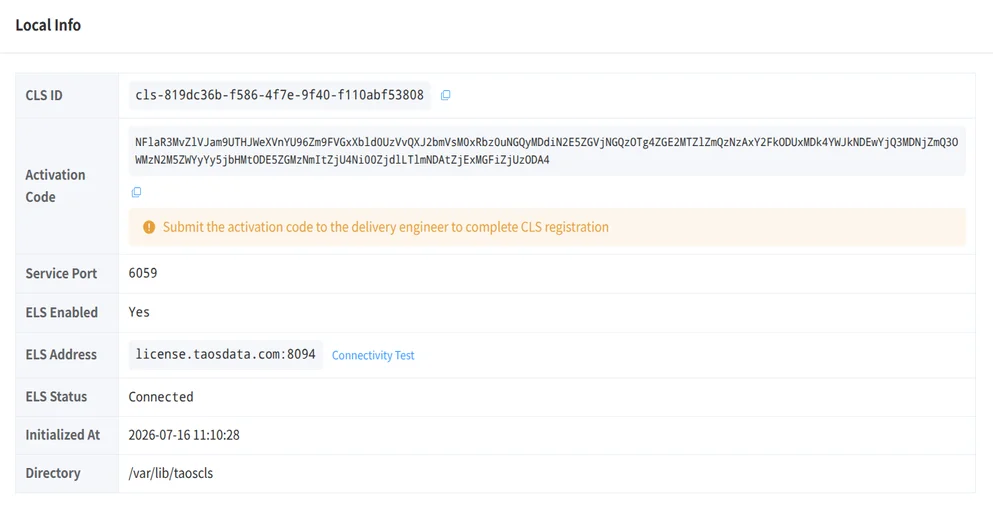
- After the service starts, open the CLS console in a browser and log in.
- On the Local Information page, view the Public Key Token and related details:
Offline Licensing
Obtain a License
Provide the Public Key Token from the CLS Local Information page to the TDengine service provider. The provider returns a license file named offline-license.key.
Import the License
On the CLS License page, click Offline Import, select offline-license.key, then click Import. After a successful import, the license appears in the list.
View Quotas
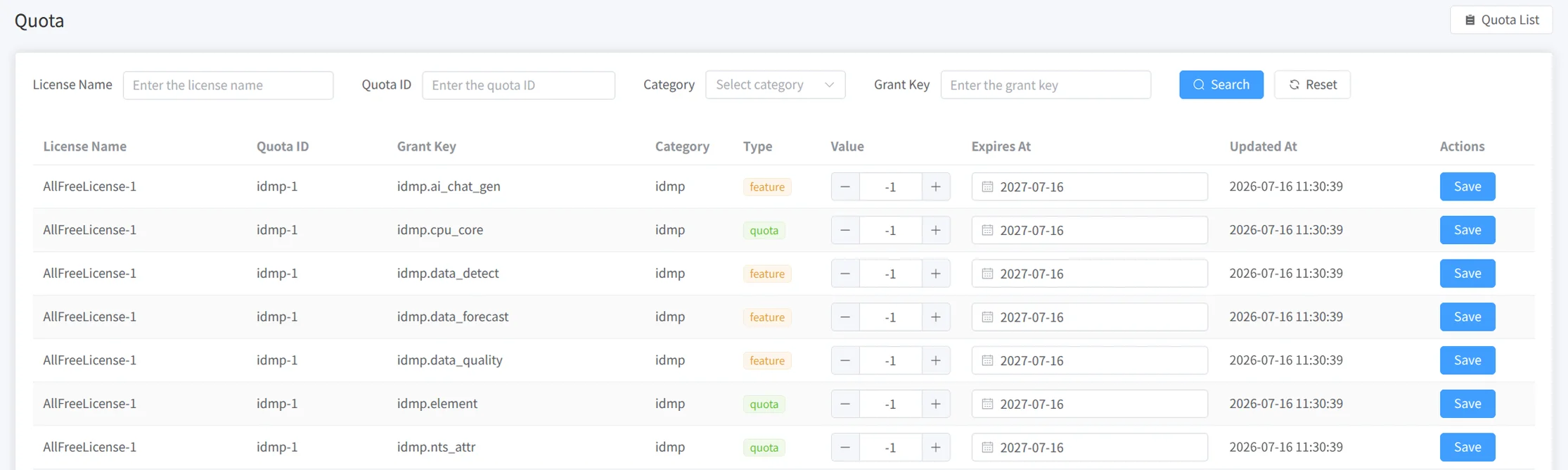
Open the Quota page to view quotas and authorization items split from the license, including license ID, quota ID, authorization item, category, type, value, and expiration time.
For how slot count and per-slot quotas are adjusted, see Quotas and Slots.
Online Licensing
Online licensing follows the same overall flow as offline licensing. The difference is how the license is obtained: if CLS is connected to ELS, licenses authorized on ELS sync to CLS automatically; offline mode requires importing a file or similar channel.
Connecting to CLS
TSDB / IDMP clusters can communicate with CLS through configuration. After configuration succeeds, instance information appears on CLS cluster pages. For usage views, see Usage and Availability.
TSDB Configuration
Configure via taosExplorer or SQL.
taosExplorer
On System Management / License in taosExplorer, click Activate License:

Field meanings match the SQL parameters below. After confirmation, the License page shows the CLS configuration:

SQL
Example:
ALTER ALL DNODES 'clsEnabled' '1';
ALTER ALL DNODES 'clsRefreshInterval' '15';
ALTER ALL DNODES 'clsUrl' 'http://192.168.2.158:6059';
ALTER ALL DNODES 'clsLicenseId' 'lic-53467044-2dad-4be2-9280-adacb201a644';
ALTER ALL DNODES 'clsQuotaSlotId' 'tsdb-1';
| Parameter | Description |
|---|---|
clsEnabled | Whether to enable CLS licensing |
clsRefreshInterval | Interval for communicating with CLS |
clsUrl | CLS service URL |
clsLicenseId | License ID to use |
clsQuotaSlotId | Quota slot ID (Slot) to use |
End users typically enter a License Key / ID (required) and a Slot (optional, depending on whether the license is split into slots). In multi-instance setups, use different clsQuotaSlotId values per instance, and keep the sum of slot quotas within the license total.
IDMP Configuration
UI configuration for newer IDMP versions is still being improved. IDMP also connects to CLS with a license ID and quota slot; follow the UI for your product version.
CLS Cluster Management
After TSDB / IDMP are configured for CLS, clusters appear on the CLS Cluster page:

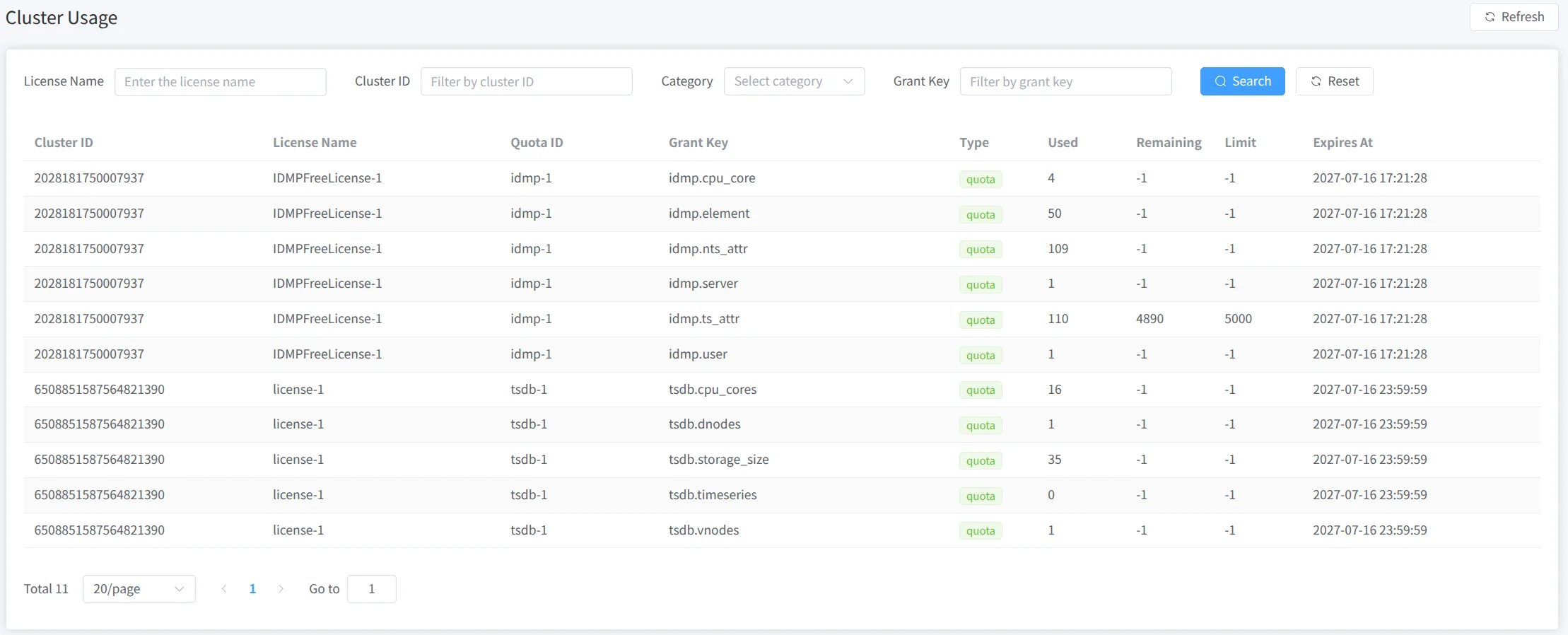
The Cluster Usage page shows authorization-item usage: