taosX-Agent Reference
Overview
taosX-Agent is a component of TDengine TSDB Enterprise that acts as a proxy for taosX. It is deployed close to data sources and is responsible for collecting data and forwarding it to taosX.
When taosX cannot directly access a data source — for example, when the data source is in an isolated OT network, an industrial control network segment, or a restricted intranet — you can deploy taosX-Agent in the same network as the data source to proxy data collection and forwarding.
Typical use cases:
- OPC UA/DA data ingestion: The OPC Server is deployed in an isolated industrial control network, while taosX is deployed in the IT network or cloud. Agent proxies the data collection.
- PI system data ingestion: The PI system is deployed in the OT network. taosX-Agent is deployed on a Windows host that can access the PI system to proxy data transfer.
- Other restricted network scenarios: Any scenario where taosX and the data source cannot communicate directly can be resolved through Agent proxying.
Features
| Feature | Description |
|---|---|
| Data proxy collection | Proxies taosX to collect data from OPC UA, OPC DA, PI, and other data sources |
| Compressed data transfer | Supports enabling communication data compression between Agent and taosX to reduce bandwidth consumption |
| In-memory cache | Supports configuring the number of in-memory cache batches to improve data transfer efficiency |
| Auto-reconnect | Supports keeping the Agent running and automatically reconnecting when the taosX service is unavailable |
| Store and Forward | Persists collected data to local disk during network outages and automatically resends it when the network recovers, ensuring zero data loss. See Store and Forward |
| Multi-instance deployment | Multiple Agent instances can be deployed on the same machine, distinguished by instanceId |
Getting taosX-Agent
taosX-Agent must be downloaded separately; it is not included in the TDengine TSDB Enterprise installation package.
Visit the TDengine Download Center, select TDengine taosX-Agent from the product list, then choose the appropriate version, operating system, and architecture to download the installation package.
taosX-Agent is only available in TDengine TSDB Enterprise. It is not included in the Community Edition.
Prerequisites
Network Requirements
taosX-Agent must maintain network connectivity with both the taosX service and the data source:
| Direction | Description |
|---|---|
| Agent → taosX | Agent must be able to access the taosX gRPC service port (default 6055) |
| Agent → Data source | Agent must be able to access the data source (e.g., OPC UA Server, PI Data Archive) |
Before deployment, verify network connectivity from Agent to taosX:
# Linux
nc -zv <taosX_host> 6055

# Windows PowerShell
Test-NetConnection -ComputerName <taosX_host> -Port 6055
Platform Requirements
- General scenarios: Agent can be deployed on both Linux and Windows.
- PI data ingestion: Agent must be deployed on Windows because PI AF SDK only supports Windows. The Agent host must also have PI AF SDK (PI AF Client 2018+) and .NET Framework 4.8+ installed.
Dependencies
- taosX: taosX-Agent must connect to a running taosX instance.
- taosExplorer: You need to create an Agent and obtain a Token through the Explorer interface.
Installation
After downloading the taosX-Agent installation package for your platform from the TDengine Download Center, follow the installer instructions to complete the installation.
After installation, taosX-Agent files are located at:
| Item | Linux | Windows |
|---|---|---|
| Executable | /usr/bin/taosx-agent | C:\TDengine\taosx-agent.exe |
| Configuration file | /etc/taos/agent.toml | C:\TDengine\cfg\agent.toml |
| Log directory | /var/log/taos/ | C:\TDengine\log\ |
| Service name | taosx-agent (systemd) | taosx-agent (Windows Service) |
Usage
Step 1: Create an Agent in Explorer
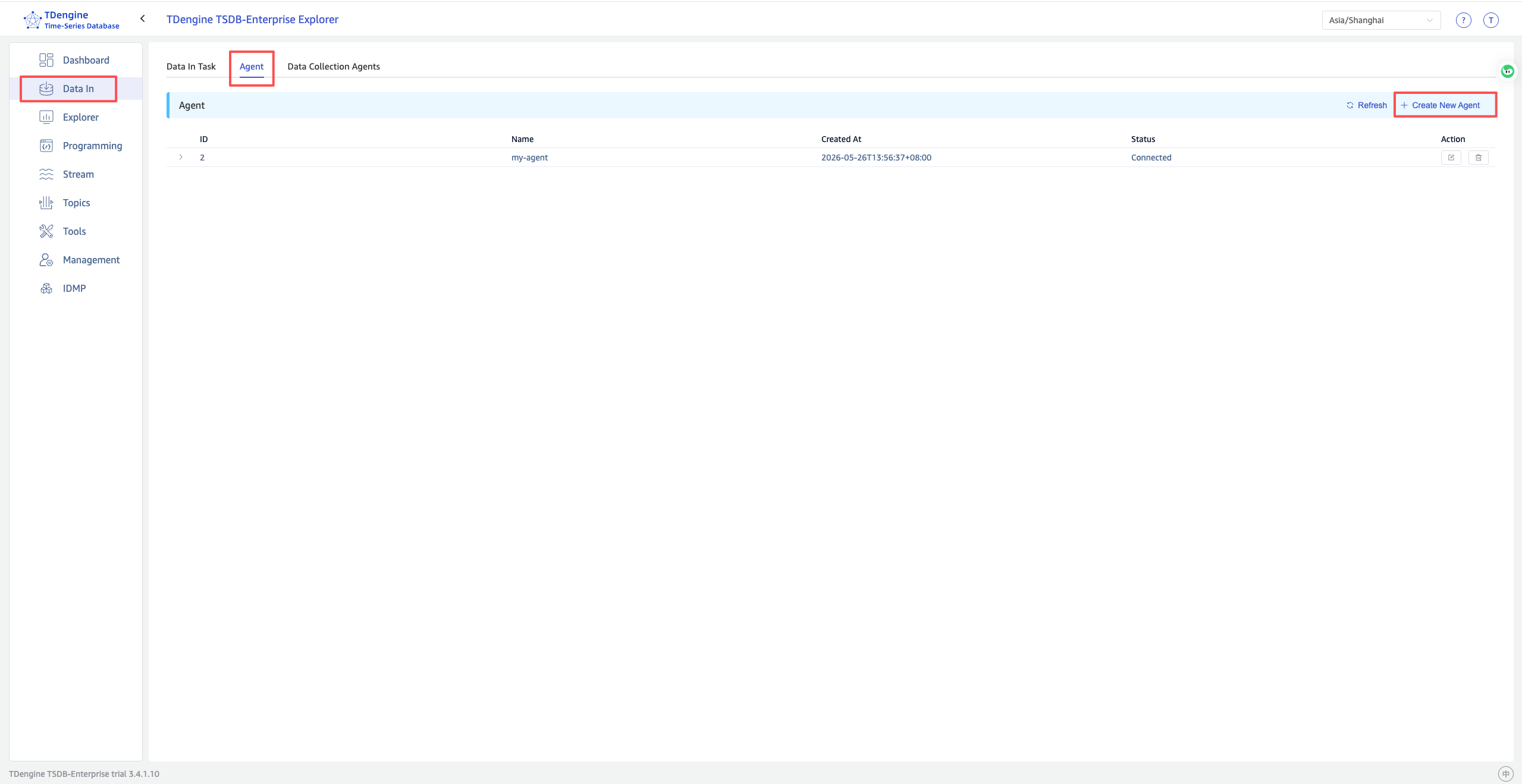
- Log in to the taosExplorer interface.
- Click Data In in the left navigation bar.
- Select the Agent tab at the top.
- Click the +Create New Agent button in the upper right corner.
- Follow the wizard instructions. The system will generate an endpoint and token. Copy and save them to the
agent.tomlconfiguration file.
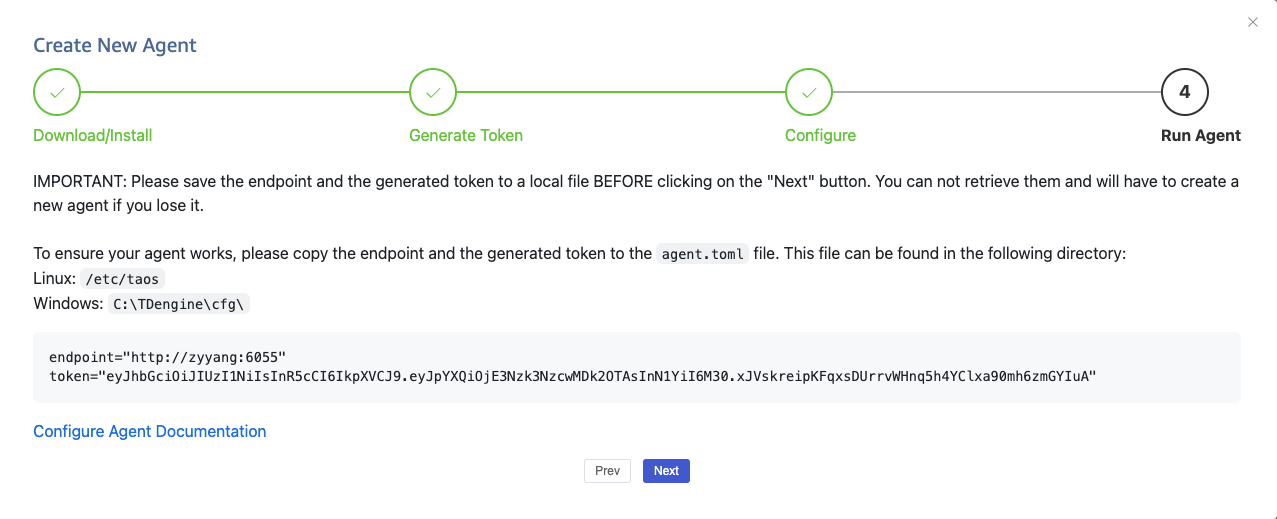
Save the endpoint and token before clicking "Next". If lost, they cannot be recovered and you must create a new agent.
Step 2: Edit the Configuration File
Edit the configuration file and fill in the information obtained from Explorer:
# taosX gRPC service address (required)
endpoint = "http://<taosX_host>:6055"

# Token generated when creating the Agent in Explorer (required)
token = "<your_token>"
For a full list of configuration options, see Configuration Reference.
Step 3: Start the Service
- Linux
- Windows
systemctl start taosx-agent
Enable auto-start on boot:
systemctl enable taosx-agent
Open the Windows Services management tool, find the taosx-agent service, and start it.
Or use the command line:
sc start taosx-agent
Step 4: Verify Agent Status
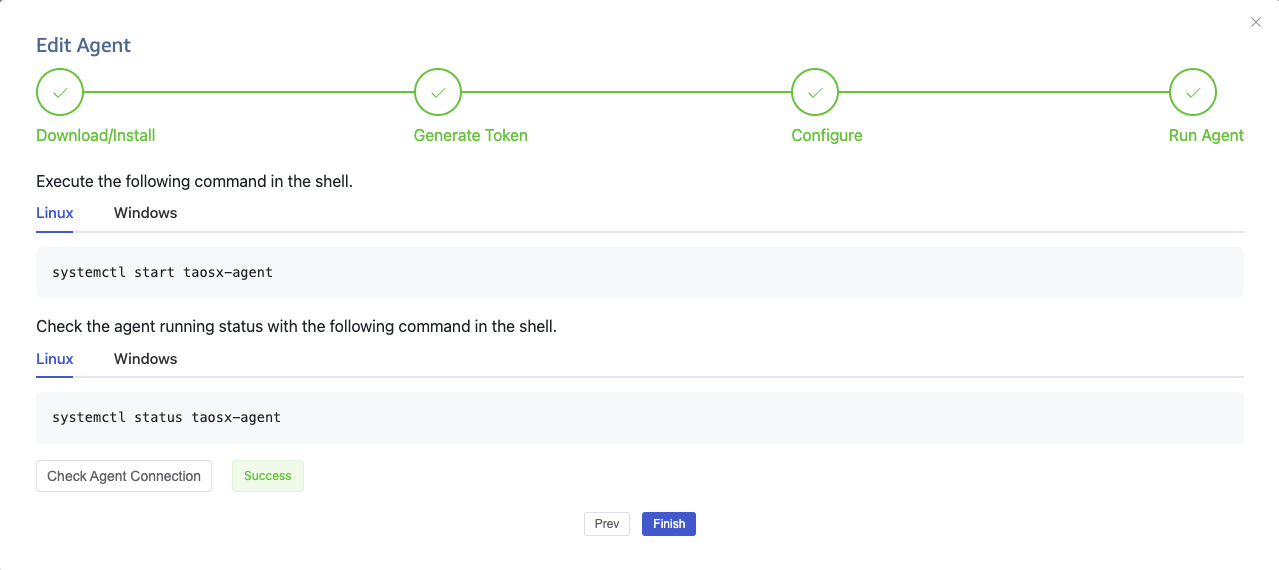
After starting, go back to the Explorer agent creation wizard page and click the Check Agent Connection button. A status of Normal indicates the Agent is online.
You can also check the logs to confirm startup:
- Linux
- Windows
journalctl -u taosx-agent -f
Or view the log file directly:
tail -f /var/log/taos/taosx-agent.log
View the log file: C:\TDengine\log\taosx-agent.log
Step 5: Create a Data Ingestion Task
Once the Agent is online, go to the Data In page in Explorer. When creating a data source task, select the online Agent from the Agent dropdown to collect data through it.
Troubleshooting
Viewing Logs
- Linux
- Windows
# View service logs with journalctl
journalctl -u taosx-agent -f

# Or view the log file directly
tail -f /var/log/taos/taosx-agent.log
View the log file C:\TDengine\log\taosx-agent.log.
Common Issues
| Symptom | Possible Cause | Solution |
|---|---|---|
| Agent cannot come online | Incorrect endpoint or network connectivity issue | Check the taosX address and port; verify network connectivity |
| Agent cannot come online | Incorrect token | Recreate the Agent in Explorer to obtain a new Token |
| Agent frequently disconnects and reconnects | Unstable network | Check the network quality between Agent and taosX; ensure keep_online = true |
| Data collection fails | Agent cannot access the data source | Check network connectivity and permissions from Agent to the data source |
Uninstall
taosX-Agent is installed as a standalone component and must be uninstalled separately.
To stop the taosX-Agent service:
- Linux
- Windows
# Stop the service
systemctl stop taosx-agent

# Disable auto-start on boot
systemctl disable taosx-agent
Open the Windows Services management tool and stop the taosx-agent service.
Or use the command line:
sc stop taosx-agent
To fully uninstall taosX-Agent, use the appropriate uninstall method for your operating system (e.g., package manager on Linux, "Add or remove programs" on Windows).