Integration with Neuron
Neuron is an industrial IoT connectivity platform developed by EMQ. It supports industrial protocols such as Modbus, OPC UA, and BACnet.
eKuiper is an open-source, lightweight edge stream processing engine. It processes data with SQL and forwards results through output actions called sinks.
NeuronEX is EMQ's industrial edge data collection and processing software. It combines Neuron's protocol connectivity with eKuiper's stream processing and provides a unified web interface for configuring data collection, processing, and forwarding.
This guide describes how to write Modbus power meter data to TDengine through the InfluxDB v1 sink in NeuronEX. This integration enables access to more than 70 industrial protocols supported by NeuronEX, subject to the version and license.
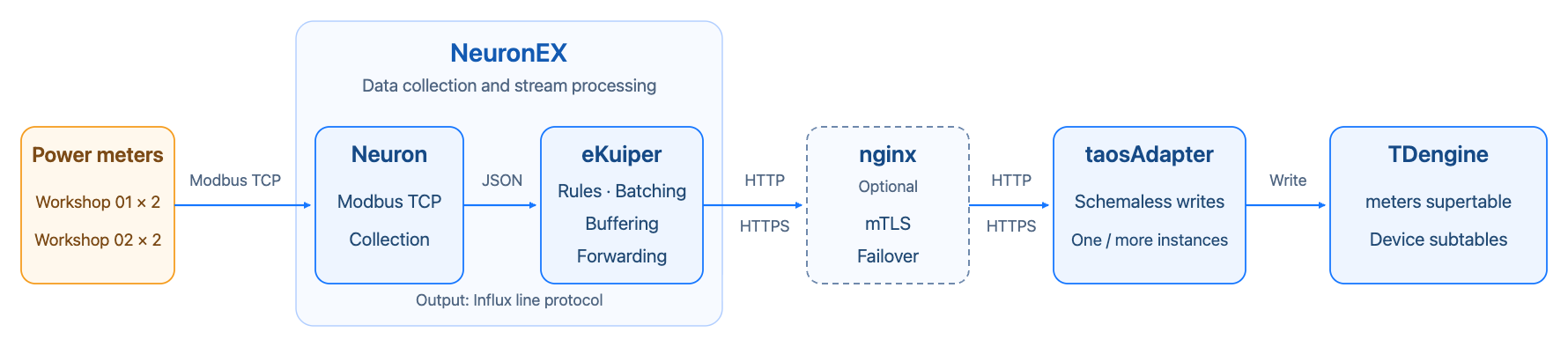
Figure 1. NeuronEX and TDengine integration architecture
In Figure 1, solid arrows indicate data flow, and the dashed box indicates the optional nginx component. Neuron converts Modbus data into JSON collection reports. eKuiper extracts measurement columns and tags, encodes them as Influx line protocol, and sends batches to taosAdapter. Schemaless writes automatically create the supertable and subtables. To use mutual TLS (mTLS) or taosAdapter failover, deploy nginx as described later in this guide.
Prerequisites
- Install and start TDengine 3.4.3.3 or later. See Download and Install. Prepare a dedicated account with table creation and write permissions.
- Install NeuronEX 4.0.0 or later. See Install NeuronEX. Confirm that the version and license support Modbus TCP, data processing, the InfluxDB v1 sink, and the 12 collection tags in this example. For buffering during a connection outage and resending after recovery, confirm that the bundled eKuiper includes the retry fix described in Store and Forward. Standalone Neuron and eKuiper deployments require a separate data channel.
- Ensure that NeuronEX can reach the taosAdapter HTTP port, which is
6041by default. - Prepare the IP addresses, ports, unit IDs, register addresses, and byte order settings for four Modbus TCP power meters. Synchronize the clock on the collection host.
Data Mapping
In NeuronEX, add each power meter and configure its connection. Create a collection group and set its collection interval. Then add tags for current, voltage, and phase, specifying a register address and data type for each tag. Collection data maps to TDengine as follows:
| Neuron data | TDengine object | Configuration |
|---|---|---|
Device name, node_name | Subtable name and device TAG | The rule outputs device; the sink maps it to both tbname and the device tag |
Collection group name, group_name | Filters reports entering the rule | SQL selects the electrical_readings group; the sink's measurement setting independently specifies the supertable name |
Tags values.current, values.voltage, and values.phase | Measurement columns current, voltage, and phase | SQL extracts the tags; the sink's fields setting selects the columns to write |
Report timestamp, timestamp | Timestamp column _ts | SQL outputs ets; the sink sets tsFieldName=ets and precision=ms |
| Location and business group | TAGs location and group_id | SQL assigns attributes based on the device name; the sink's tags setting selects the tags |
In this example, each complete collection report from a meter becomes one row in its corresponding subtable. Current, voltage, and phase map to three measurement columns.
A Neuron tag is a collection point and maps to a measurement column. A TDengine TAG is a subtable attribute. group_id is a business group identifier configured separately from the collection group name. You can also map group_name to a TAG, but the group name must remain fixed for a given subtable.
Example Data Model
This example uses two power meters in each of two workshops at one factory. Each meter reports current, voltage, and phase once per second. All four devices share the meters supertable and write to separate subtables. Each device uses a collection group named electrical_readings.
Device name, subtable name, and device tag | group_id | location |
|---|---|---|
workshop01_meter01 | 1 | Factory01.Workshop01 |
workshop01_meter02 | 1 | Factory01.Workshop01 |
workshop02_meter01 | 2 | Factory01.Workshop02 |
workshop02_meter02 | 2 | Factory01.Workshop02 |
TDengine stores Factory01.Workshop01 as the complete location tag value. IDMP can later split the value at the period into the hierarchy Factory01 → Workshop01.
The business fields follow the meters data modeling example. The first schemaless write automatically creates the tables with the following types:
| Category | Fields | Automatically generated type |
|---|---|---|
| Timestamp column | _ts | TIMESTAMP |
| Measurement columns | current, phase | DOUBLE |
| Measurement column | voltage | BIGINT |
| Tags | location, group_id, device | NCHAR |
The Influx line protocol encoding determines the actual field types, which differ from the standard meters example. Tag values containing only ASCII characters still produce NCHAR columns.
Configuration
1. Create a Database
Run the following statement in a TDengine SQL client. Do not manually create the supertable or subtables.
CREATE DATABASE IF NOT EXISTS neuron_meters_demo PRECISION 'ms';
2. Check the Direct Connection Endpoint
Run the following command on the NeuronEX host or inside its container. Replace adapter-host with the actual taosAdapter hostname or IP address.
curl -i http://adapter-host:6041/influxdb/v1/ping
A 204 No Content response indicates that the endpoint is reachable. The InfluxDB v1 client calls this endpoint at startup. If it returns 404, check the path and confirm that TDengine is version 3.4.3.3 or later. NeuronEX can connect directly to taosAdapter without nginx. For encrypted transport or taosAdapter failover, configure nginx as described in Encrypted Transport and High Availability.
3. Configure Modbus Collection
-
Go to Data Collection → South Devices. Add four Modbus TCP devices with the example names and configure their connections.
Setting Value Purpose Connection mode Client Initiates a connection to the meter IP address and port Actual meter IP address and port, typically 502Identifies the device to read Connection timeout 3000msLimits the wait for an unresponsive request Command send interval 20msSets the interval between requests on the same connection; separate from the collection interval 32-bit byte order Follow the device manual, for example ABCDDecodes floating-point values correctly -
Create an
electrical_readingscollection group under each device. Set the interval to1000msand add the following three read tags.Tag name Type Example address Registers used currentFLOAT1!400001400001, 400002 voltageUINT161!400003400003 phaseFLOAT1!400004400004, 400005 Use the addresses specified in the device register map.
1!specifies unit ID 1. AFLOAToccupies two registers, so tag addresses must not overlap. Different device nodes can use the same register addresses.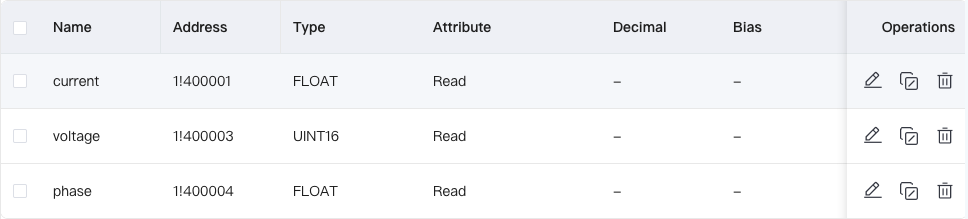
-
Save and start the devices. Confirm that each device is running and connected. In Data Collection → Data Monitoring, select each device and collection group, then verify that all three values are correct and continue to update.
-
Go to Data Collection → North Apps. Subscribe the built-in
DataProcessingapplication to theelectrical_readingsgroup on all four devices to send reports to eKuiper. Creating devices and a rule does not automatically create this subscription.
4. Create a Data Stream
A stream defines the field structure of collection reports. Rules read data from this stream.
-
Go to Data Processing → Sources → Create Stream and enter the following settings.
Setting Value Name meters_streamSource type NeuronConfiguration Key defaultStream Format JSONWhether the schema stream Enabled Shared True -
Add the following fields. Set
valuestoSTRUCTand add the three measurement fields beneath it.Field Type Purpose timestampBIGINTReport timestamp in milliseconds node_nameSTRINGDevice name group_nameSTRINGCollection group name valuesSTRUCTCollection of measurement values values.currentFLOATCurrent values.voltageBIGINTInteger voltage values.phaseFLOATPhase -
Save the stream and confirm that its schema includes all tags to be written.
An explicit schema preserves voltage as an integer instead of treating schemaless JSON numbers as floating-point values. BIGINT is an eKuiper integer type and does not specify the Modbus register width. Enable Shared to let multiple rules reuse the same source.
5. Create a Data Processing Rule
-
Go to Data Processing → Rules → Create Rule and set the rule ID to
meters_to_tdengine. -
Enter the following statement in the SQL editor.
SELECT values.current AS current,
       values.voltage AS voltage,
       values.phase AS phase,
       timestamp AS ets,
       node_name AS device,
       CASE WHEN node_name IN ("workshop01_meter01", "workshop01_meter02")
            THEN "1" ELSE "2" END AS group_id,
       CASE WHEN node_name IN ("workshop01_meter01", "workshop01_meter02")
            THEN "Factory01.Workshop01" ELSE "Factory01.Workshop02" END AS location
FROM meters_stream
WHERE group_name = "electrical_readings"
  AND node_name IN ("workshop01_meter01", "workshop01_meter02",
                    "workshop02_meter01", "workshop02_meter02")
This SQL selects reports from the four meters'
electrical_readingsgroups, extracts current, voltage, and phase, preserves the original timestamp and device name, and assigns the location and business group identifier by device name. The device name determines the subtable name; location and business group are written as TAGs. -
Click Add Action, select InfluxDB v1, and configure the write action in the next step.
All four devices share one rule. When adding or replacing devices of the same type, update the northbound application subscriptions, device filter, and location and business group mappings in SQL. A separate rule for each device is unnecessary.
If collection reports contain metadata such as location and business group identifiers, declare those fields in the stream and select them directly in SQL as TAG values. This reduces per-device mapping configuration. This example assigns these attributes with CASE expressions.
6. Configure the InfluxDB v1 Action
The following JSON is a complete InfluxDB v1 action configuration and corresponds to the interface settings below. Replace the address, username, and password.
{
  "addr": "http://adapter-host:6041/influxdb/v1?table_name_key=tbname",
  "username": "<tdengine_username>",
  "password": "<tdengine_password>",
  "database": "neuron_meters_demo",
  "measurement": "meters",
  "precision": "ms",
  "tsFieldName": "ets",
  "fields": [
    "current",
    "voltage",
    "phase"
  ],
  "tags": {
    "tbname": "{{.device}}",
    "device": "{{.device}}",
    "group_id": "{{.group_id}}",
    "location": "{{.location}}"
  },
  "sendSingle": true,
  "batchSize": 1000,
  "lingerInterval": 100,
  "enableCache": true,
  "memoryCacheThreshold": 1024,
  "bufferPageSize": 256,
  "maxDiskCache": 102400,
  "resendInterval": 500
}
-
Enter the following settings under Connection, replacing the address and account details with actual values.
Setting Value Address ( addr)http://adapter-host:6041/influxdb/v1?table_name_key=tbnameUsername ( username)Dedicated TDengine write account Password ( password)Password for that account Database ( database)neuron_meters_demoKeep
/influxdb/v1in the address. The client appends/pingor/writeand preserves the query parameters. Enter the username and password in separate fields. In production, use a dedicated write account and restrict access to configuration files, exported files, and management APIs. -
Configure the field and tag mappings under Data Processing.
Setting Value Precision ( precision)msMeasurement ( measurement)metersTimestamp Field ( tsFieldName)etsFields ( fields)current,voltage,phaseTag tbname{{.device}}Tag device{{.device}}Tag group_id{{.group_id}}Tag location{{.location}}table_name_key=tbnameusestbnameto name the subtable without storing it as a TAG.devicepreserves the device identity. Select only the three measurement columns infieldsto avoid writing helper fields such asetsas measurement columns.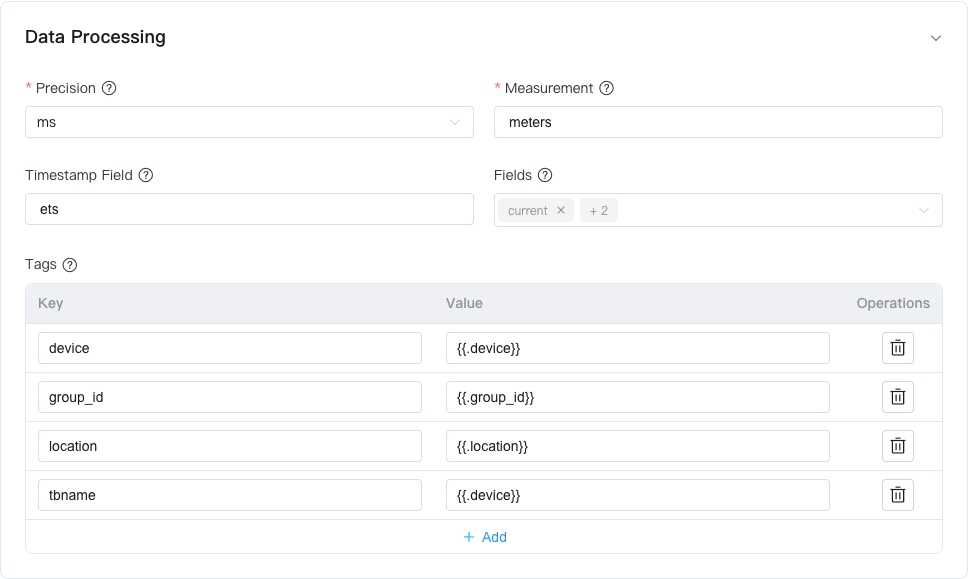
-
Expand Sink Properties, set Enable Cache (
enableCache) toTrue, and configure batching and caching as follows.Setting Value Purpose Batch size ( batchSize)1000Sends when the batch size is reached Linger Interval ( lingerInterval)100Waits this many milliseconds for an incomplete batch Enable cache ( enableCache)TrueEnables the sink cache Memory cache threshold ( memoryCacheThreshold)1024Sets the in-memory message threshold Buffer page size ( bufferPageSize)256Sets the number of messages per disk page Maximum disk cache ( maxDiskCache)102400Sets the disk cache message limit Resend interval ( resendInterval)500Sets the resend interval in milliseconds A batch is sent when either
batchSizeis reached orlingerIntervalexpires, whichever occurs first. Low traffic does not have to fill a batch of 1,000 rows. A cached message can contain a batch of rows, so message counts do not directly indicate row counts or the supported outage duration. Refer to the documentation for your eKuiper version for parameter details.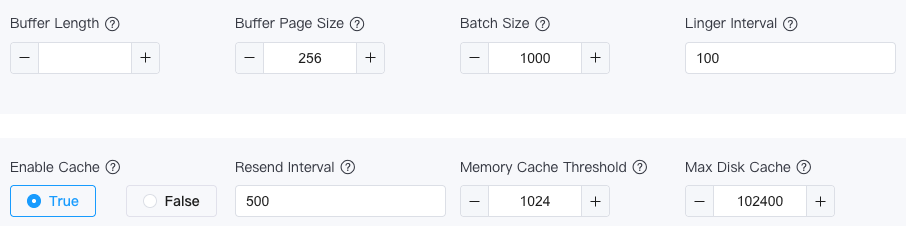
-
Submit the action, then save and start the rule.
The NeuronEX interface sets sendSingle=true by default to evaluate dynamic tags for each row. It does not send a separate HTTP request for each row. Retain this parameter when configuring a rule through JSON. Data is still sent in batches according to the settings above, and each device writes to its own subtable. Actual latency also includes queueing and network calls.
Writes to the same subtable with the same millisecond timestamp overwrite existing data. Use globally unique subtable names and preserve report timestamps. Explicitly update subtable TAGs when attributes such as location change.
Verify the Results
-
In a TDengine SQL client, check the automatically generated schema and device tags.
DESCRIBE neuron_meters_demo.meters;

SELECT DISTINCT TBNAME, device, group_id, location
FROM neuron_meters_demo.meters;
There should be four subtables with field types and tags matching the example data model.
-
Query the latest data and compare it with Data Collection → Data Monitoring. Replace the subtable name to check all four devices.
SELECT _ts, current, voltage, phase
FROM neuron_meters_demo.workshop01_meter01
ORDER BY _ts DESC LIMIT 5; -
Repeat the following query a few seconds apart to confirm that the row count increases in all four subtables.
SELECT TBNAME, COUNT(*)
FROM neuron_meters_demo.meters PARTITION BY TBNAME;
Use query results to confirm ingestion. A running rule or successful ping does not confirm that data is being written.
Monitor Operation
Go to Data Processing → Rules, find meters_to_tdengine, and select More → Statistics to view the statistics for each stage.
| Metric | Expected status or action |
|---|---|
connection_status | The sink connection status is Connected |
| Input and output counts | Counts continue to increase; units can differ before and after batching, so batch counts are not database row counts |
buffer_length | The cache length can fluctuate temporarily but should fall again |
exceptions_total, last_exception | No exceptions during normal operation; check the count and most recent error if an exception occurs |
Display Data in IDMP (Optional)
In IDMP, configure a TDengine TSDB connection under Admin Console → Connections. For that connection, select More → Easy Import, then select neuron_meters_demo.meters.
Use the location tag as the path, set the path level to 0, and enter ${location} as the expression. Import device and group_id as static attributes. Split location at periods into factory and workshop levels, and use each subtable name as a leaf meter element.
After import, open the Element Explorer to view the following hierarchy. Select a meter to view its current, voltage, and phase measurement attributes.
Factory01
├── Workshop01
│   ├── workshop01_meter01
│   └── workshop01_meter02
└── Workshop02
    ├── workshop02_meter01
    └── workshop02_meter02
For detailed import instructions, see Build Data Models from TDengine TSDB. This ingestion example does not include unit information. To add units or configure conversions, see Units of Measure.
Store and Forward
The InfluxDB v1 sink in eKuiper provides buffering and forwarding for this example. When a downstream service is temporarily unavailable, the sink caches data if capacity is available and the error is retryable. After connectivity recovers, it resends data with the original subtable names and report timestamps.
To use this feature:
- Confirm that eKuiper includes the Influx v1 retry fix in PR #4201. Without it, resending might fail. Before deployment, provide EMQX with the NeuronEX and bundled eKuiper versions and confirm that the fix is included.
- Under Data Processing → Rules, edit the rule's InfluxDB v1 action. Expand Sink Properties, set Enable Cache (
enableCache) toTrue, and configure capacity and the resend interval. See the parameter table and screenshot in Configure the InfluxDB v1 Action. Mount the eKuiper data directory on persistent storage. - Monitor disk space, cache length, and exceptions. If the backlog keeps growing, adjust the collection interval, batching settings, or collection group assignments.
A build containing the fix passed connection outage and recovery testing, and all test data was resent successfully. Authentication, permission, or schema errors can also be retried continuously and block subsequent data; correct these errors manually. Errors during data conversion or Influx point construction do not necessarily trigger retries.
A process crash or host failure can lose data held in memory or in transit. Data can also be lost if cache capacity is exhausted.
For parameter details, see eKuiper Sink Cache and Sending Mechanism.
Encrypted Transport and High Availability (Optional)
For mTLS or taosAdapter failover, deploy nginx and change the sink address to the nginx endpoint. A basic direct HTTP connection does not require this configuration.
Configure mTLS and Multiple taosAdapter Instances
This example uses a three-node TDengine cluster with one taosAdapter instance on each node, all connected to the same cluster. nginx validates client certificates, distributes requests among the three instances, and switches to another instance if an upstream fails.
-
Install nginx and add the following configuration in the
httpcontext. Replace the domain, upstream addresses, and certificate paths. The server certificate SAN must matchingest.example.com.upstream taosadapter {
least_conn;
server adapter-a.internal:6041 max_fails=2 fail_timeout=10s;
server adapter-b.internal:6041 max_fails=2 fail_timeout=10s;
server adapter-c.internal:6041 max_fails=2 fail_timeout=10s;
}
server {
listen 8443 ssl;
client_max_body_size 32m;
server_name ingest.example.com;
ssl_certificate /etc/nginx/certs/server.crt;
ssl_certificate_key /etc/nginx/certs/server.key;
ssl_client_certificate /etc/nginx/certs/client-ca.crt;
ssl_verify_client on;
ssl_protocols TLSv1.2 TLSv1.3;
location /influxdb/v1/ {
proxy_pass http://taosadapter;
proxy_connect_timeout 3s;
proxy_read_timeout 60s;
proxy_next_upstream error timeout http_502 http_503 http_504 non_idempotent;
proxy_next_upstream_tries 3;
}
} -
Run
nginx -tto check the configuration, then start or reload nginx. In the rule's InfluxDB v1 action, set the address tohttps://ingest.example.com:8443/influxdb/v1?table_name_key=tbname. nginx forwards both ping and write requests to taosAdapter. -
Under the action's Connection settings, upload the client certificate, private key, and server CA certificate. Set Skip Certification Verification to
False. For file-based configuration, use the following parameters. Certificate paths must be readable by eKuiper; mount the certificates when using containers.{
"rootCaPath": "/etc/ekuiper/certs/server-ca.crt",
"certificationPath": "/etc/ekuiper/certs/client.crt",
"privateKeyPath": "/etc/ekuiper/certs/client.key",
"insecureSkipVerify": false
} -
Save the action and start the rule. Follow Verify the Results to confirm that data continues to arrive. Disable temporary plaintext endpoints in production.
For HTTPS with server authentication only, remove ssl_client_certificate and ssl_verify_client from nginx, and remove the sink's client certificate and private key settings. Retain CA verification. The example uses HTTP from nginx to taosAdapter, which requires a controlled network. Configure upstream HTTPS separately if encryption is required on that connection.
proxy_next_upstream_tries 3 limits each request to three attempts, including the first attempt. non_idempotent allows a failed POST to be sent to another instance. Retries preserve the subtable name, timestamp, and measurement values so that writes with the same key handle duplicates. Failed batches rely on the sink cache for resending.
Configure High Availability at Each Layer
| Layer | Deployment requirement | Considerations |
|---|---|---|
| nginx | A pair of hosts with a Keepalived VIP, or an existing highly available load balancer; the sink uses a shared domain | Synchronize configuration and certificates; the domain must match the certificate |
| taosAdapter | One instance on each of three nodes, connected to the same TDengine cluster | Multiple instances on one host do not protect against host failure |
| TDengine | Configure clustering and replication according to the version and license; see Deployment Management | The standalone database configuration in this example does not provide database high availability |
| NeuronEX | Synchronize configuration according to the official primary/backup guide; normally only the primary collects data | Collection can pause during failover; current Modbus register values generally cannot recover historical readings |
| Edge-to-center network | Enable the sink cache and monitor capacity | See Store and Forward for recovery limits |
Validate primary/backup and cluster failover for the actual deployment topology.
Performance Reference
Test Configuration
The following results are from an existing performance test and are provided for capacity planning. The test covered normal connectivity with caching and nginx mTLS enabled. The test versions below differ from the direct connection functional verification environment described earlier.
| Item | Configuration |
|---|---|
| Hardware | Intel Xeon E5-2696 v4, 22 physical cores, 44 logical cores, 64 GiB RAM, NVMe |
| Deployment | Ubuntu 24.04, Linux x86_64, all components running as native processes on one host |
| Neuron | Open-source version 2.15.0, custom build with a Modbus transaction ID rollover fix |
| eKuiper | 2.4.2+pr4201-perfcore test build with an Influx error classification fix |
| TDengine | Enterprise Edition 3.4.3.3; ms precision, VGROUPS 16, WAL_LEVEL 1, WAL_FSYNC_PERIOD 3000 |
| Collection | 16 drivers × 4 groups × 128 logical meters × 3 measurements, totaling 24,576 configured tags; 100ms interval |
| Northbound | 8 applications subscribe to separate collection groups; 8 groups per application, each application with its own source, rule, and output action |
| Batching and security | 100ms batch interval, batchSize=10000, about 1,024 rows per request on average; cache enabled, bufferLength=20000, disableBufferFullDiscard=true, nginx mTLS, CA verification |
The test read the simulator bundled with Neuron over Modbus, reusing registers across groups. The 8,192 logical meters do not represent 8,192 physical devices. Each row contains three collected values; tag values are excluded from measurement value throughput.
Reference Results
| Metric | Measured result |
|---|---|
| Net increase in database rows | 147,524,815 rows |
| Average ingestion throughput | 81,913.81 rows/s |
| Equivalent measurement value update throughput | 245,741.42 values/s |
| Throughput range across sampling intervals | 80,359.68–83,470.95 rows/s |
| Report-to-successful-response p99 | 1,171ms |
| Maximum latency using the same definition | 2,054.33ms |
| Sampled peak sink queue | 82 batches, later returning to zero; final queue length was zero |
Throughput is calculated from the net increase in database rows, with three collected values per row. Measurement value throughput is not the number of configured tags. The p99 is measured from the report timestamp to the successful taosAdapter response, at 1ms resolution. It includes batching wait time, queueing, and downstream calls, and excludes Modbus collection time.
After collection stopped and the cache drained, the rule's valid output row count, the row count represented by successful requests, the number of unique subtable name/timestamp combinations, and the database row count matched. Reconciliation excludes reports with missing values that the rule filtered out.
Neuron and eKuiper each used about 6.6 logical cores on average. Neuron resident memory was about 73MiB, eKuiper's sampled peak was about 275MiB, and nginx overhead was small. Neither resident memory nor the sink queue showed sustained growth.
These results support capacity planning and do not represent TDengine's write limit or a performance guarantee for official releases. Retest with actual devices, rules, field counts, networks, and hardware, and reserve capacity. To scale further, partition collection groups across multiple Neuron instances with corresponding eKuiper instances, allocate separate CPU resources, and use unique subtable names. Multi-instance scaling ratios have not been verified.
Troubleshooting
| Symptom | Checks and actions |
|---|---|
| Incorrect collected values | Check the unit ID, register addresses, byte order, and whether floating-point addresses overlap |
| A rule stops automatically after starting | Check whether the license includes data processing; a rule running under a test license can stop after 60 minutes |
| HTTPS connection fails | Check the CA, server certificate SAN, client certificate, and certificate paths inside the container |
| Cache length keeps increasing in the statistics | Adjust collection intervals, batching settings, or collection group assignments to prevent sustained sending rates below collection rates |
| Data is not resent despite caching being enabled | Confirm the version includes the retry fix described in Store and Forward, then check error classification, disk space, and cache capacity |