Integration With Excel
By configuring the use of the ODBC connector, Excel can quickly access data from TDengine. Users can import tag data, raw time-series data, or time-aggregated time series data from TDengine into Excel to create reports or dashboards, all without the need for any coding.
Prerequisites
Prepare the following environment:
- TDengine 3.3.5.8 and above version is installed and running normally (both Enterprise and Community versions are available).
- taosAdapter is running normally, refer to taosAdapter Reference.
- Install and run Excel. If not installed, please download and install it. For specific instructions, please refer to Microsoft's official documentation.
- Download the latest Windows operating system X64 client driver from the TDengine official website and install it, refer to Install ODBC Driver.
Configure Data Source
Step 1, Search and open the [ODBC Data Source (64 bit)] management tool in the Start menu of the Windows operating system and configure it, refer to Install ODBC Driver.
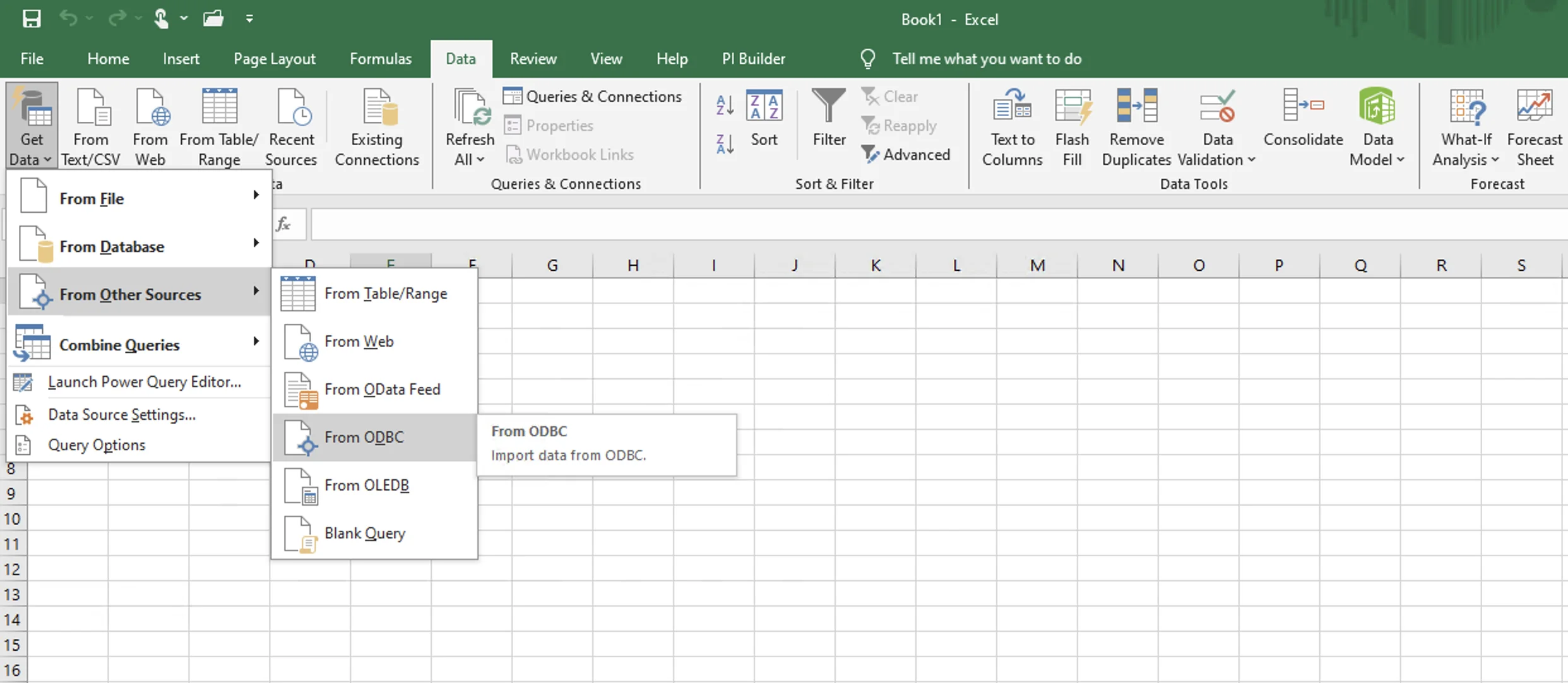
Step 2, Start Excel in the Windows system environment, then select [Data] -> [Get Data] -> [From Other Sources] -> [From ODBC].
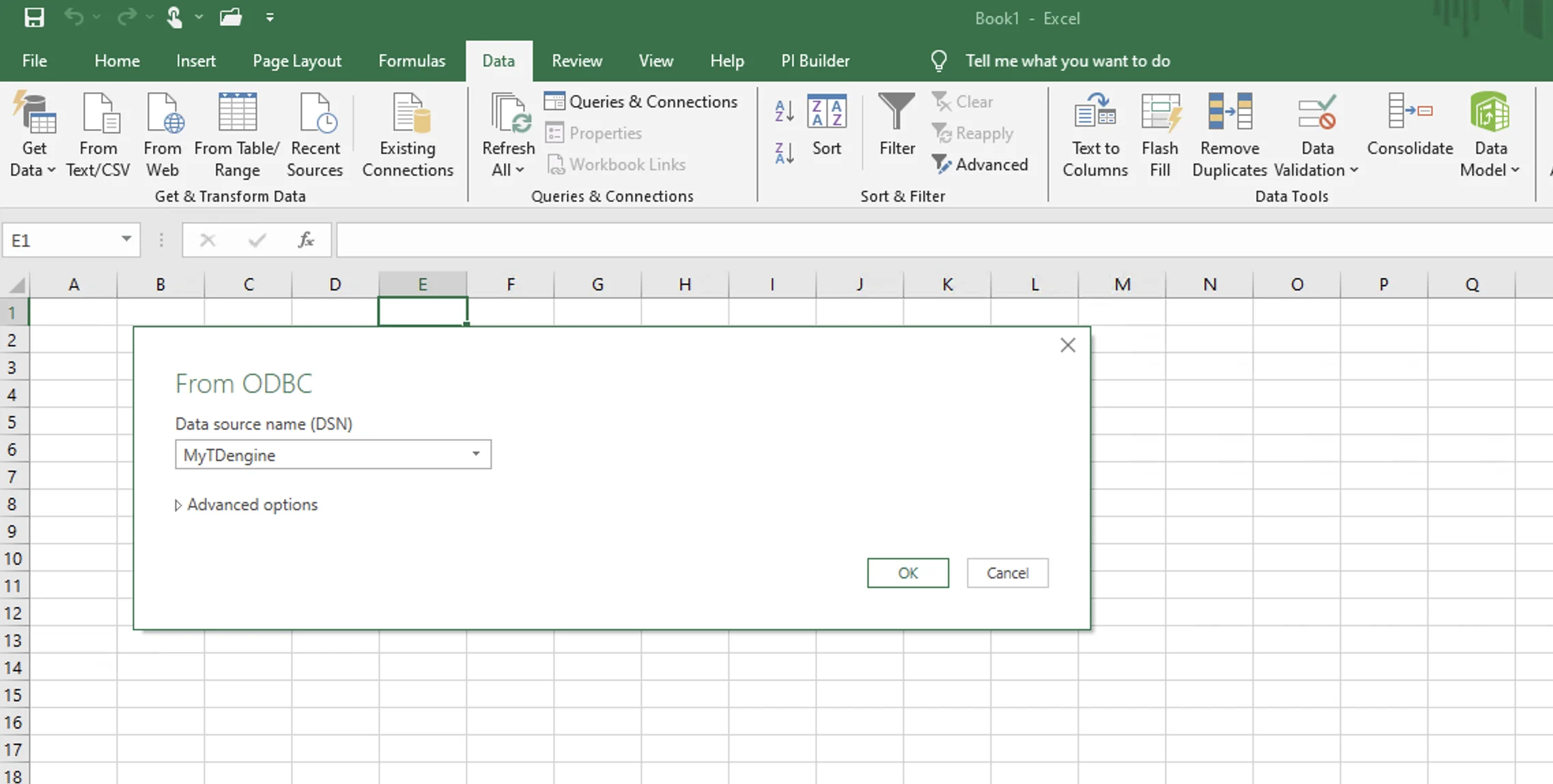
Step 3, In the pop-up window, select the data source you need to connect to from the drop-down list of [Data source name (DSN)], and then click the [OK] button.
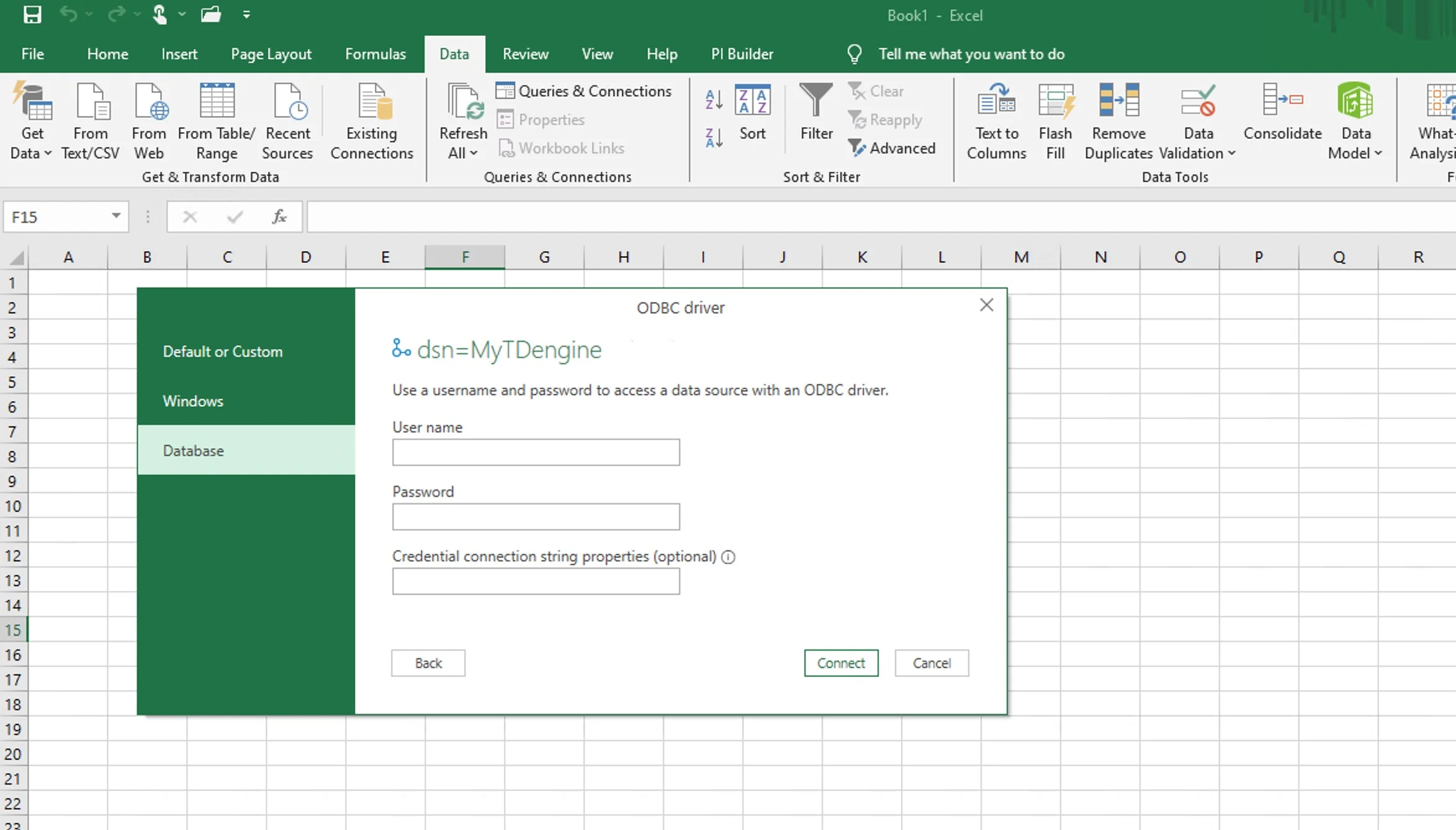
Step 4, Enter the username and password for TDengine.
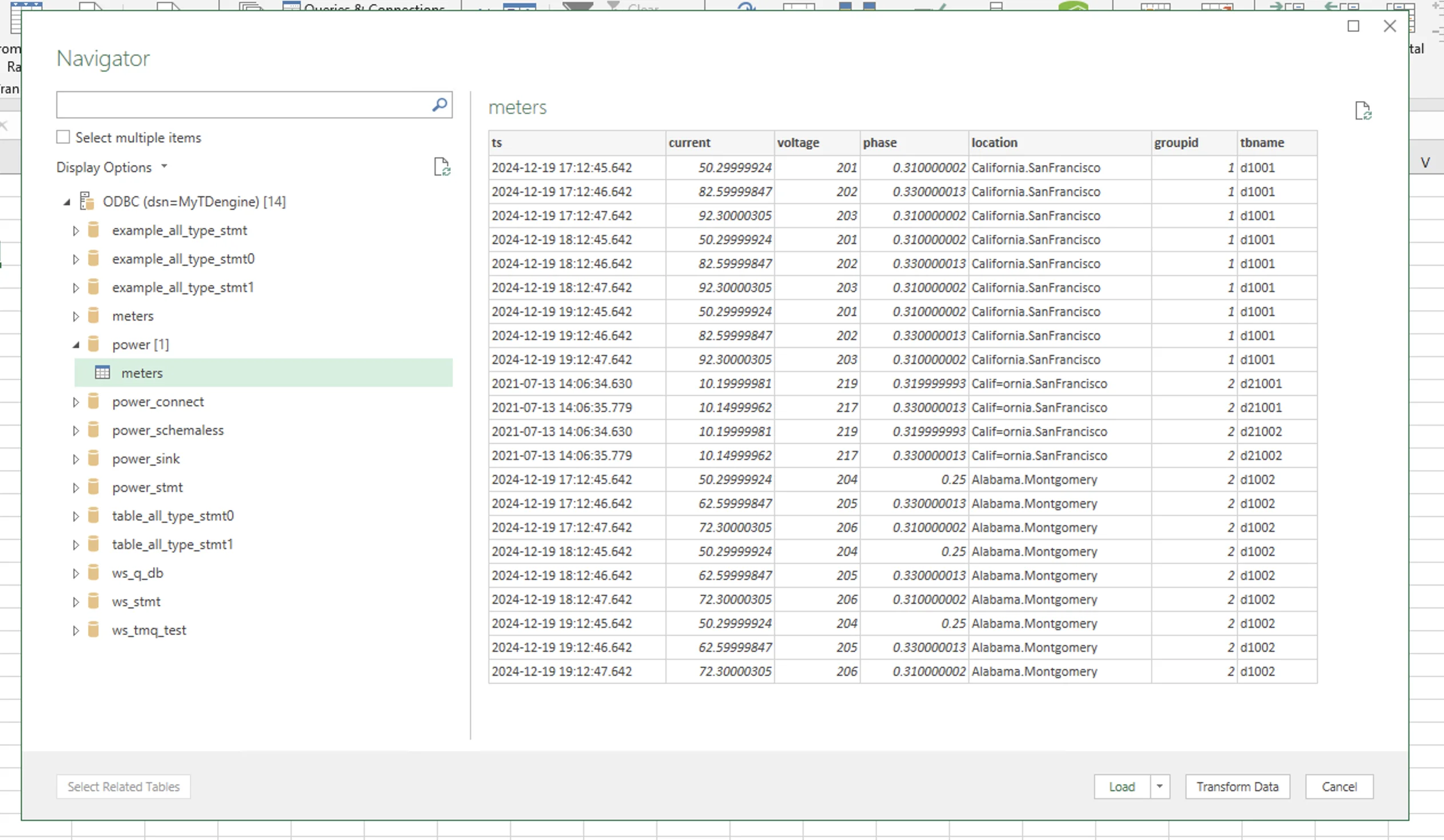
Step 5, In the pop-up [Navigator] dialog box, select the database tables you want to load, and then click [Load] to complete the data loading.
Data Analysis
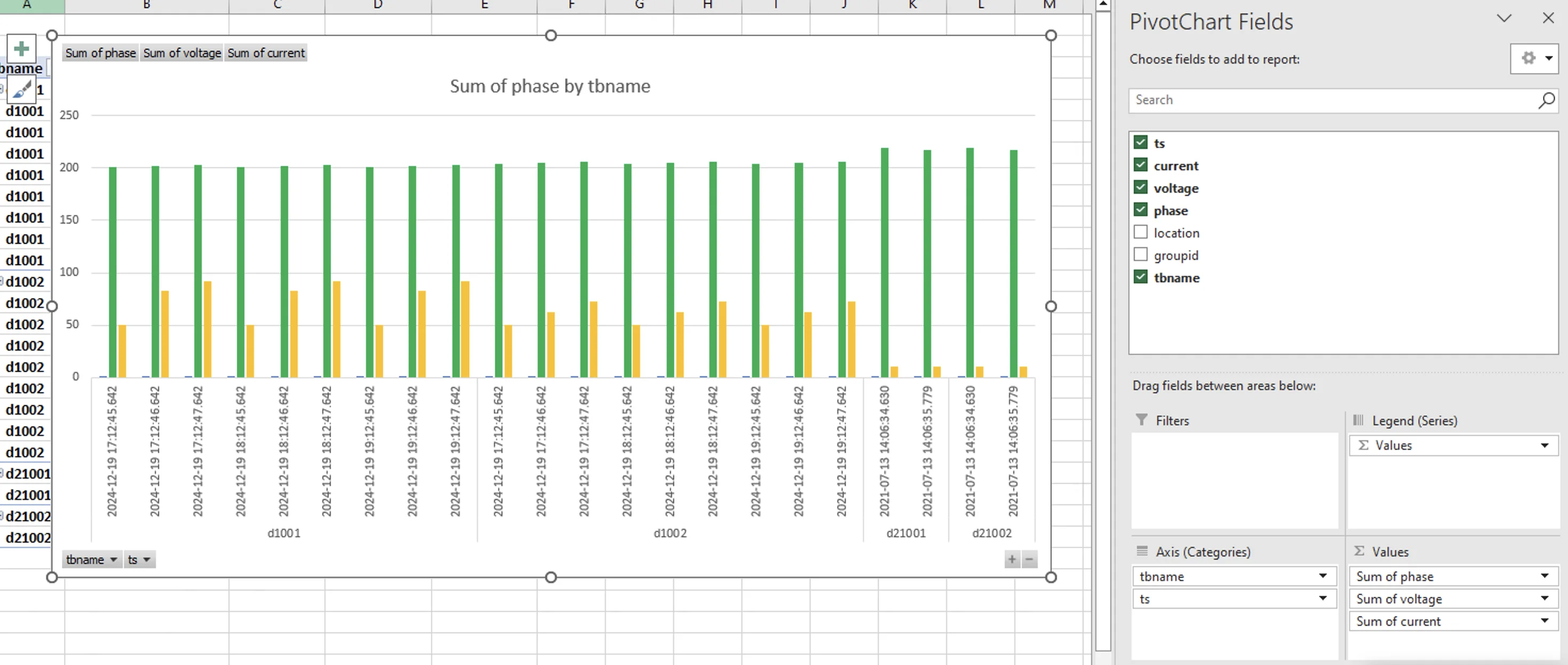
Select the imported data. On the [Insert] tab, choose the column chart, and then configure the data fields in the [PivotChart Fields] pane on the right.