MQTT
The features or components discussed in this document are available in TDengine TSDB-Enterprise only. TDengine TSDB-OSS does not include these features or components.
This section describes how to create data migration tasks through the taosExplorer interface, migrating data from MQTT to the current TDengine cluster.
Overview
MQTT stands for Message Queuing Telemetry Transport. It is a lightweight messaging protocol that is easy to implement and use.
TDengine can subscribe to data from an MQTT broker via an MQTT connector and write it into TDengine, enabling real-time data streaming.
Procedure
Add a Data Source
- In a web browser, open taosExplorer. This interface is located on port 6060 on the hostname or IP address running TDengine.
- In the main menu on the left, click Data In and then click Add Task.
- In the Name field, enter a unique name for the data ingestion task.
- From the Type drop-down list, select MQTT.
- (Optional) If this data ingestion task requires an agent, select the agent from the Agent drop-down list. You can also click Create New Agent to create the agent now.
For more information, see Install taosX-Agent.
- From the Target DB drop-down list, select the database in which you want to store data ingested by this task. You can also click Create Database to create the database now.
Configure Connection and Authentication Information
Enter the MQTT broker's address in MQTT Address, for example: 192.168.1.42
Enter the MQTT broker's port in MQTT Port, for example: 1883
Enter the MQTT broker's username in User.
Enter the MQTT broker's password in Password.
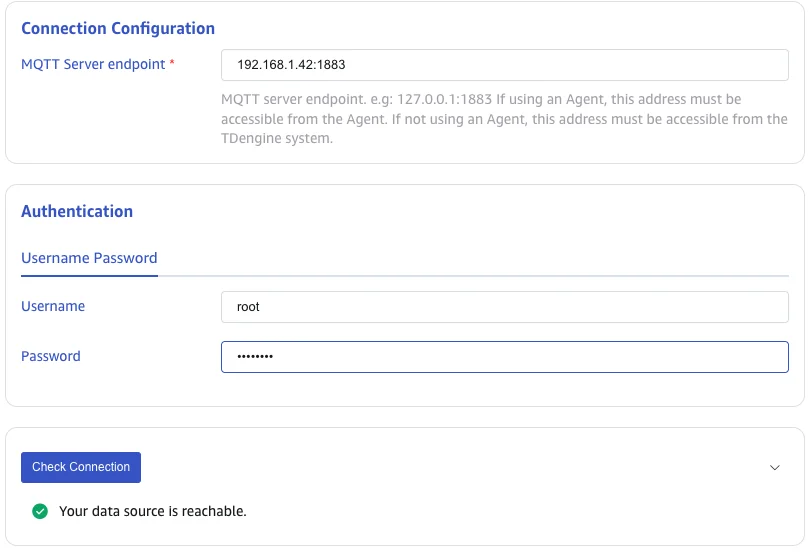
Configure TLS
In TLS Verification, select one of the following modes:
- Disabled: Do not verify TLS certificates. The connector first attempts TCP and, if that fails, attempts TLS without certificate verification.
- One-way authentication: Use TLS and verify the server certificate. Upload the CA certificate.
- Mutual authentication: Use mutual TLS. Upload the CA certificate, client certificate, and client private key.

Configure Collection Information
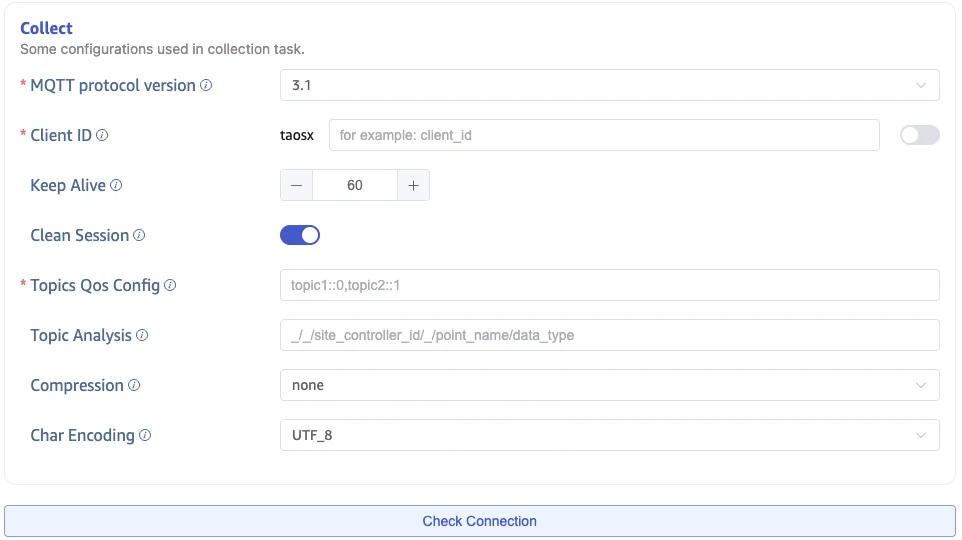
Fill in the collection task related configuration parameters in the Collection Configuration area.
Select the MQTT protocol version from the MQTT Protocol dropdown list. There are two options: 3.1.1 and 5.0. The default value is 3.1.1. MQTT 3.1 (legacy, MQIsdp) is not supported.
Enter the client identifier in Client ID, after which a client id with the prefix taosx will be generated (for example, if the identifier entered is foo, the generated client id will be taosxfoo). If the switch at the end is turned on, the current task's task id will be concatenated after taosx and before the entered identifier (the generated client id will look like taosx100foo). All client ids connecting to the same MQTT address must be unique.
Enter the keep alive interval in Keep Alive. If the broker does not receive any message from the client within the keep alive interval, it will assume the client has disconnected and will close the connection. The keep alive interval is the time interval negotiated between the client and the broker to check if the client is active. If the client does not send a message to the broker within the keep alive interval, the broker will disconnect.
In Clean Session, choose whether to clear the session. The default value is true.
When MQTT 5.0 is selected, you can configure custom Connection User Properties and Subscription User Properties. When using a TDengine Bnode as the MQTT broker, you can also specify the initial subscription position.
In the Topics Qos Config, fill in the topic name and QoS to subscribe. Use the following format: {topic_name}::{qos} (e.g., my_topic::0). MQTT protocol 5.0 supports shared subscriptions, allowing multiple clients to subscribe to the same topic for load balancing. Use the following format: $share/{group_name}/{topic_name}::{qos}, where $share is a fixed prefix indicating the enablement of shared subscription, and group_name is the client group name, similar to Kafka's consumer group.
In the Topic Analysis, fill in the MQTT topic parsing rules. The format is the same as the MQTT Topic, parsing each level of the MQTT Topic into corresponding variable names, with _ indicating that the current level is ignored during parsing. For example: if the MQTT Topic a/+/c corresponds to the parsing rule v1/v2/_, it means assigning the first level a to variable v1, the value of the second level (where the wildcard + represents any value) to variable v2, and ignoring the value of the third level c, which will not be assigned to any variable. In the payload parsing below, the variables obtained from Topic parsing can also participate in various transformations and calculations.
In the Compression, configure the message body compression algorithm. After receiving the message, taosX uses the corresponding compression algorithm to decompress the message body and obtain the original data. Options include none (no compression), gzip, snappy, lz4, and zstd, with the default being none.
In the Char Encoding, configure the message body encoding format. After receiving the message, taosX uses the corresponding encoding format to decode the message body and obtain the original data. Options include UTF_8, GBK, GB18030, and BIG5, with the default being UTF_8.
Click the Check Connection button to check if the data source is available.
Configure MQTT Payload Parsing
Fill in the Payload parsing related configuration parameters in the MQTT Payload Parsing area.
taosX can use a JSON extractor to parse data and allows users to specify the data model in the database, including specifying table names and supertable names, setting ordinary columns and tag columns, etc.
Parsing
There are three methods to obtain sample data:
Click the Retrieve from Server button to get sample data from MQTT.
Click the File Upload button to upload a CSV file and obtain sample data.
Fill in the example data from the MQTT message body in Message Body.
JSON data supports JSONObject or JSONArray, and the json parser can parse the following data:
{"id": 1, "message": "hello-word"}
{"id": 2, "message": "hello-word"}
or
[{"id": 1, "message": "hello-word"},{"id": 2, "message": "hello-word"}]
The analysis results are as follows:
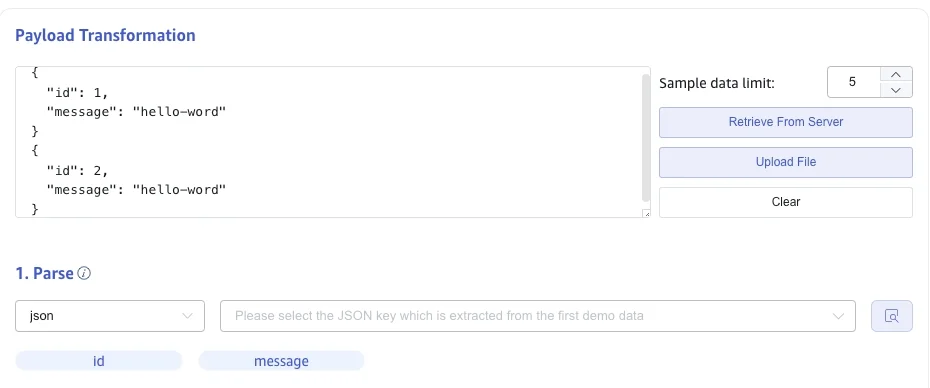
Click the magnifying glass icon to view the preview of the analysis results.

Field Splitting
In Extract or Split from Column, fill in the fields to extract or split from the message body, for example: split the message field into message_0 and message_1, select the split extractor, fill in the separator as -, and number as 2.

Click Delete to remove the current extraction rule.
Click Add to add more extraction rules.
Click the magnifying glass icon to view the preview of the extraction/split results.

Data Filtering
In Filter, fill in the filtering conditions, for example: write id != 1, then only data with id not equal to 1 will be written to TDengine.
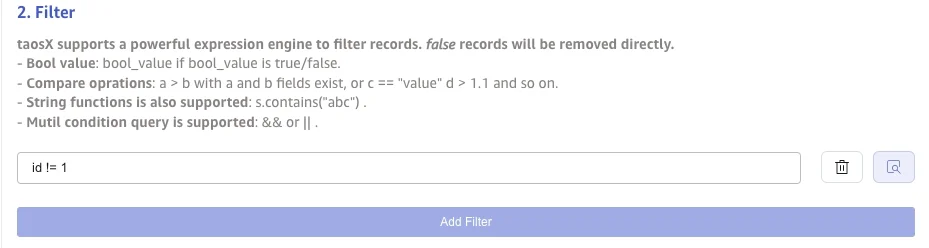
Click Delete to remove the current filtering rule.
Click the magnifying glass icon to view the preview of the filtering results.

Table Mapping
In the Target Supertable dropdown, select a target supertable, or click the Create Supertable button on the right.
If the supertable must be generated dynamically from each message, select Create Template. The supertable name, column names, and column types can contain template variables. When data arrives, taosX evaluates the variables, creates a missing supertable, and adds missing columns to an existing supertable.
In Mapping, fill in the subtable name in the target supertable, for example: t_{id}. Fill in the mapping rules according to the requirements, where mapping supports setting default values.
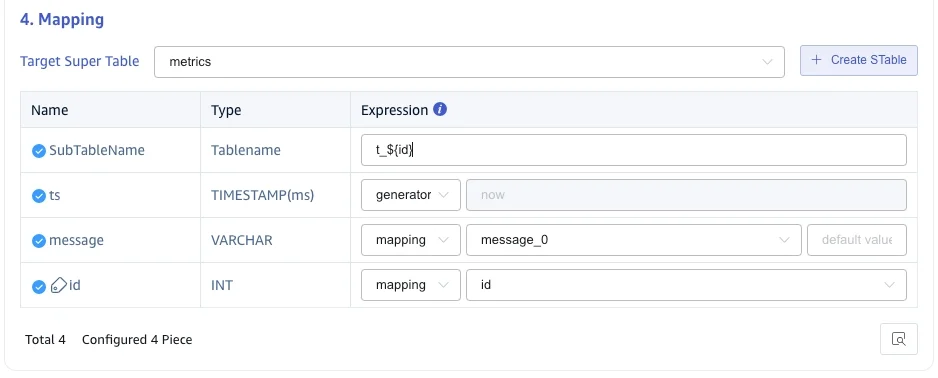
Click Preview to view the mapping results.

If a supertable column name is a template variable, mapping performs a pivot: the template-variable values become column names and the mapped field supplies their values.
Advanced Options
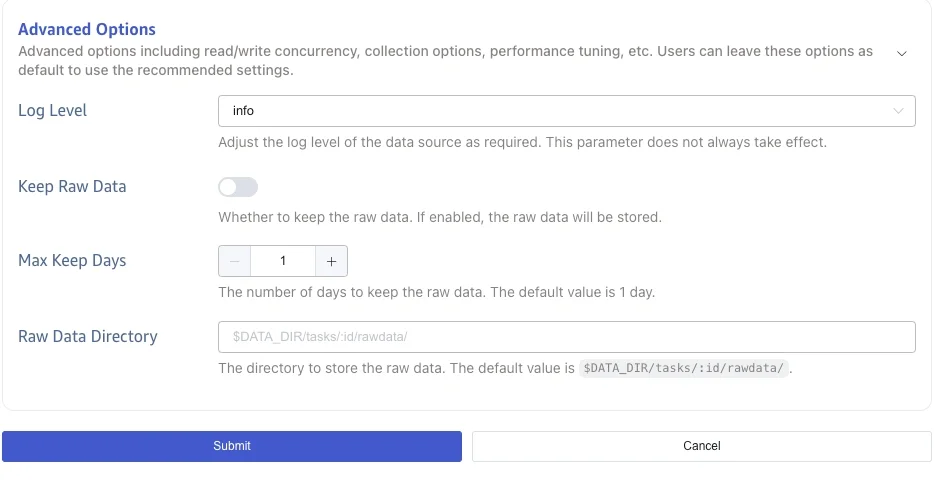
The Advanced Options section is collapsed by default. Click > to expand it. MQTT and SparkplugB data sources commonly provide the following options; field names can vary by connector.
Message Queue Size specifies the receive buffer size. If the queue is full and Cache Realtime Data is disabled, newly arrived data is discarded. Set this option to 0 to disable buffering.
Maximum In-Process Batches specifies how many batches can be processed concurrently. Once this limit is reached, the connector stops taking messages from the receive queue, causing them to accumulate. The minimum value is 1.
Batch Size specifies how many messages are sent to the processing pipeline at a time. It works with Batch Delay: a full batch is sent immediately even if the delay has not elapsed. The minimum value is 1.
Batch Delay specifies the timeout for each batch in milliseconds, measured from its first message. When the timeout expires, the batch is sent even if it has not reached Batch Size. The minimum value is 1.
Write Concurrency specifies how many tasks can write to TDengine concurrently.
When Cache Realtime Data is enabled, consumed data is first written to a local file and a background task forwards it downstream. This provides traffic shaping when downstream processing cannot keep up. Cache files are removed after the backlog is consumed. This option is disabled by default. For details, see Store and Forward.
Cache Storage Directory overrides the directory used for cache files. It applies only when Cache Realtime Data is enabled and otherwise defaults to the data directory configured at taosX startup.
When Save Raw Data is enabled, you can also configure Maximum Retention Days and Raw Data Storage Directory.
For health-monitoring options, see Health Status.
Exception Handling
The Exception Handling Strategy section is collapsed by default. Click > to expand it.
The common strategies are:
- Archive: Write the invalid data to an archive file, by default under
${data_dir}/tasks/<id>/<datetime>, without writing it to the target database. Archive files are used for troubleshooting: only the first batch is kept for each failure reason in the same archive file, and the total number of invalid rows is reported by the task monitoring metrics. Use thetaosx archivecommand to inspect archive files. - Discard: Ignore the invalid data.
- Error: Report an error.
- Cache: For a target connection failure or resource shortage, write data to a cache file and ingest it after the target recovers.
You can configure strategies for these conditions:
- Target connection timeout: Archive, discard, error, or cache.
- Target database does not exist: Archive, discard, or error.
- Table does not exist: Archive, discard, error, or create the table automatically and retry.
- Primary timestamp out of range (
now - keep1throughnow + 100y): Archive, discard, or error. - Primary timestamp is null: Archive, discard, error, or use the current time.
- Composite primary key is null: Archive, discard, or error.
- Table name exceeds 192 characters: Archive, discard, error, truncate, or truncate and archive.
- Invalid table-name characters, such as
.: Archive, discard, error, or replace invalid characters with a configured string. - Null table-name template variable: Discard, leave the variable empty, or replace it with a configured string.
- Column does not exist: Archive, discard, error, or add the missing column automatically and retry.
- Column name exceeds 64 characters: Archive, discard, or error.
- Column value exceeds its defined length: Archive, discard, error, truncate, or truncate and archive. Automatic Column Expansion can alter the table and retry instead.
- Other data errors: Archive, discard, or error.
Additional settings include:
- Connection Timeout: Target connection timeout in seconds, from
1through600. - Temporary Storage Location: A path relative to
${data_dir}/tasks/<id>/. - Archive Retention Days: A nonnegative integer;
0means unlimited. - Archive Available Space: From
0through65535;0means unlimited. - Archive Location: A path relative to
${data_dir}/tasks/<id>/. - Archive Write Failure Strategy: Delete old files, discard the data, or report an error and stop the task.
Completion
Click the Submit button to complete the creation of the MQTT to TDengine data synchronization task, return to the Data Source List page to view the status of the task execution.