CSV File
The features or components discussed in this document are available in TDengine TSDB-Enterprise only. TDengine TSDB-OSS does not include these features or components.
This section describes how to create data migration tasks through the taosExplorer interface, migrating data from CSV to the current TDengine cluster.
Feature Overview
Import data from one or more CSV files into TDengine.
Create Task
Add Data Source
On the data writing page, click the +Add Data Source button to enter the add data source page.

Configure Basic Information
Enter the task name in Name, such as: "test_csv";
Select CSV from the Type dropdown list.
Select a target database from the Target Database dropdown list, or click the +Create Database button on the right.

Configure CSV Options
Click to enable or disable in the Include Header area, if enabled, the first line will be treated as column information.
In the Ignore First N Rows area, fill in N, indicating to ignore the first N rows of the CSV file.
Select in the Field Separator area, the separator between CSV fields, default is ",".
Select in the Field Enclosure area, used to surround field content when CSV fields contain separators or newline characters, ensuring the entire field is correctly recognized, default is """.
Select in the Comment Prefix area, if a line in the CSV file starts with the character specified here, that line will be ignored, default is "#".
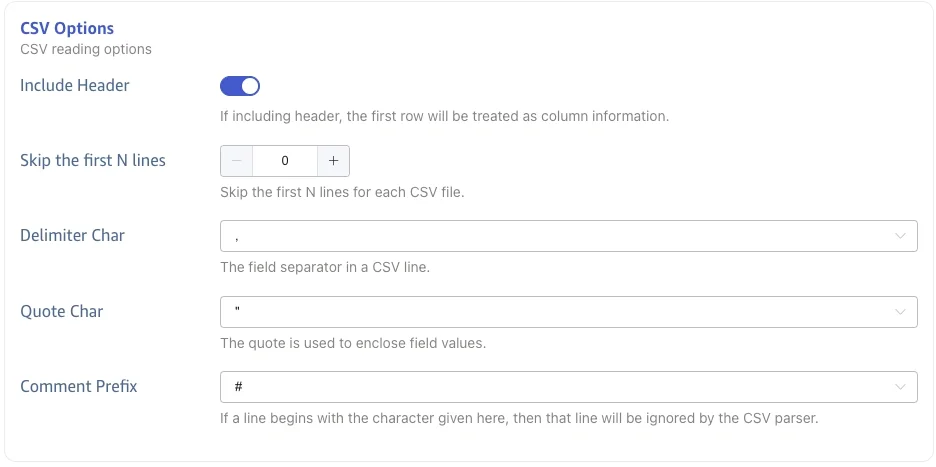
Configure Parsing CSV File
Upload a CSV file locally, for example: test-json.csv, this example csv file will be used later to configure extraction and filtering conditions.
Parsing
Click Select File, choose test-json.csv, then click Parse to preview the recognized columns.
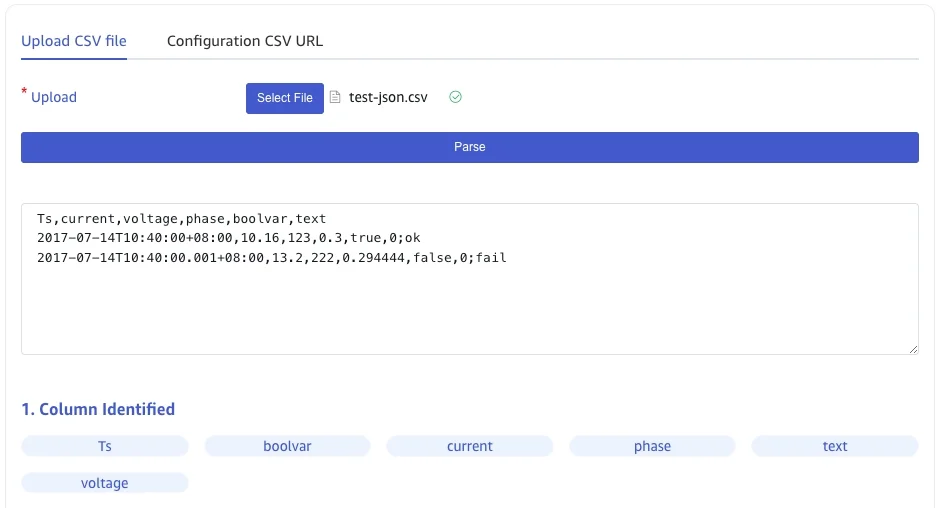

Field Splitting
In Extract or Split from Column, fill in the fields to extract or split from the message body, for example: split the message field into text_0 and text_1, select the split extractor, fill in the separator as -, and number as 2.
Click Delete to remove the current extraction rule.
Click Add to add more extraction rules.

Click the Magnifying Glass Icon to preview the extraction or splitting results.

Table Mapping
Select a target supertable from the Target Supertable dropdown list, or click the Create Supertable button on the right.
In Mapping, fill in the subtable name of the target supertable, for example: t_${groupid}.
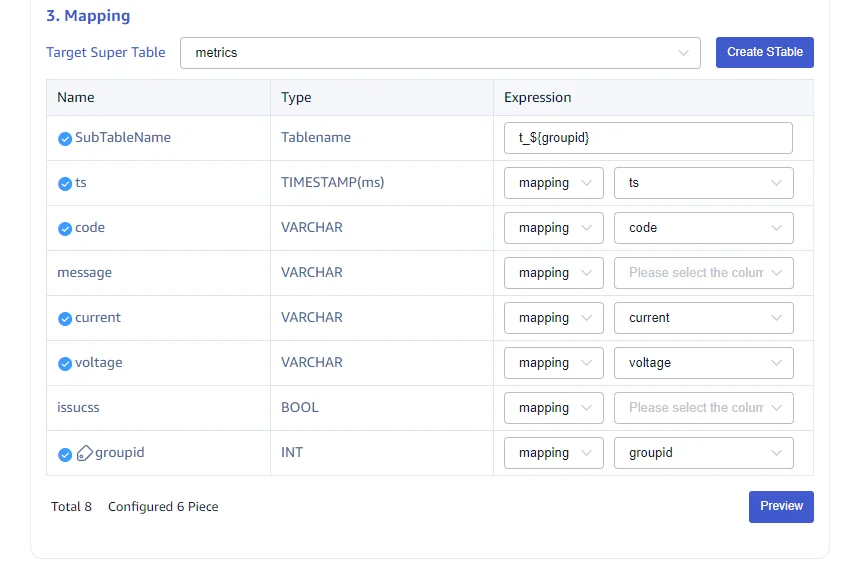
Click Preview to preview the mapping results.

Configure Advanced Options
The Advanced Options section is collapsed by default. Click > to expand it. Fields vary by data source; common options include the following.
Maximum Read Concurrency limits the number of source connections or reader threads. The default 0 lets the connector configure this automatically. Increase it when the source responds slowly and additional concurrency is appropriate.
Batch Size specifies the maximum number of messages or rows sent at a time. The default depends on the data source and is commonly 1000 or 10000.
Some data sources also provide Write Concurrency, which specifies how many tasks can write to TDengine concurrently. For health-monitoring options such as monitoring periods, busy-state thresholds, write-queue length, and write-error thresholds, see Health Status.
Configure Exception Handling
The Exception Handling Strategy section is collapsed by default. Click > to expand it.
The common strategies are:
- Archive: Write the invalid data to an archive file, by default under
${data_dir}/tasks/<id>/<datetime>, without writing it to the target database. Archive files are used for troubleshooting: only the first batch is kept for each failure reason in the same archive file, and the total number of invalid rows is reported by the task monitoring metrics. Use thetaosx archivecommand to inspect archive files. - Discard: Ignore the invalid data.
- Error: Report an error.
- Cache: For a target connection failure or resource shortage, write data to a cache file and ingest it after the target recovers.
You can configure strategies for these conditions:
- Target connection timeout: Archive, discard, error, or cache.
- Target database does not exist: Archive, discard, or error.
- Table does not exist: Archive, discard, error, or create the table automatically and retry.
- Primary timestamp out of range (
now - keep1throughnow + 100y): Archive, discard, or error. - Primary timestamp is null: Archive, discard, error, or use the current time.
- Composite primary key is null: Archive, discard, or error.
- Table name exceeds 192 characters: Archive, discard, error, truncate, or truncate and archive.
- Invalid table-name characters, such as
.: Archive, discard, error, or replace invalid characters with a configured string. - Null table-name template variable: Discard, leave the variable empty, or replace it with a configured string.
- Column does not exist: Archive, discard, error, or add the missing column automatically and retry.
- Column name exceeds 64 characters: Archive, discard, or error.
- Column value exceeds its defined length: Archive, discard, error, truncate, or truncate and archive. Automatic Column Expansion can alter the table and retry instead.
- Other data errors: Archive, discard, or error.
Additional settings include:
- Connection Timeout: Target connection timeout in seconds, from
1through600. - Temporary Storage Location: A path relative to
${data_dir}/tasks/<id>/. - Archive Retention Days: A nonnegative integer;
0means unlimited. - Archive Available Space: From
0through65535;0means unlimited. - Archive Location: A path relative to
${data_dir}/tasks/<id>/. - Archive Write Failure Strategy: Delete old files, discard the data, or report an error and stop the task.
Completion
Click Submit to create the CSV ingestion task. On the task list, you can start, stop, view, edit, delete, or copy the task.
View Runtime Metrics
Click View to inspect task metrics and the processing status of every file.