Edge Gateway Onboarding
Overview
Edge gateway onboarding is designed for scenarios where device collection is already configured on a Neuron / NeuronEX gateway: in TDengine Explorer, on the Data In → Edge Gateways tab, enter the gateway address and credentials and confirm the mapping. Explorer then automatically configures the data stream, write rules, and collection subscriptions, and the collected data starts flowing continuously into the current cluster.
Unlike the other ingestion methods in this chapter, edge gateway onboarding does not create a taosX ingestion task and requires no parsing or mapping configuration — the device, tag, and data type definitions come directly from the gateway's existing collection configuration. The data plane is Neuron → eKuiper → taosAdapter, with supertables and subtables created automatically by schemaless writes. After configuration, the data path does not depend on Explorer staying online.
NeuronEX and the open-source Neuron + eKuiper combination are currently supported.
Prerequisites
- Neuron and eKuiper are deployed: either NeuronEX 4.0.0 or later (which bundles both; see Install NeuronEX), or the open-source combination of Neuron 2.15.0 or later and eKuiper (which must include the InfluxDB v1 sink).
- Device collection is configured in Neuron (or NeuronEX): devices are added, collection groups are created, and tags are configured; devices are running and connected, and tag values are continuously updating in Data Monitoring. Any protocol supported by Neuron can be used — Modbus, OPC UA, Siemens S7, and so on.
- The Neuron host can reach the taosAdapter HTTP port, which is
6041by default. - To buffer data during outages and resend after recovery, confirm that eKuiper includes the retry fix described in Store and Forward.
- TDengine TSDB 3.4.3.6 or later is deployed, and a database for writing has been created.
Data Mapping and Collection Configuration Guidelines
Before onboarding, understand how Neuron objects map to TDengine objects and what kind of collection configuration onboards smoothly.
Object Mapping
| Neuron object | TDengine object | Description |
|---|---|---|
Device (southbound node) node_name | Subtable | One subtable per device; the subtable carries a device tag recording the device name |
Collection group group_name | Supertable | One collection group maps to one supertable; devices in the group share the table schema |
Tag values.* | Measurement column | Each tag maps to one measurement column |
Report timestamp timestamp | Timestamp column _ts | Millisecond precision |
One-click onboarding performs this mapping automatically and additionally attaches fixed tags: device (device name), group_name (collection group name), protocol (the plugin protocol used by the device), and gateway (the Neuron gateway address, used to distinguish multiple gateways writing to the same database). The subtable name defaults to "prefix + device name"; when a device name cannot be written as-is or a device belongs to multiple collection groups, TDengine generates a name from the tag set. Manual onboarding lets you define tags and subtable naming yourself. Attributes such as location, unit, and business hierarchy are not part of collection configuration; one-click onboarding does not infer them — use manual onboarding to define them when needed.
Naming and Grouping Guidelines
The following guidelines apply to the collection configuration in Neuron itself, regardless of the onboarding method. Following them produces the clearest, most readable table structure:
- Device names are globally unique. Devices with the same name write to the same subtable, mixing their data. Device names are naturally unique within one Neuron instance; when multiple Neuron gateways write to the same database, device names may collide — set a distinct subtable name prefix for each gateway.
- Use well-behaved characters in device names. Letters, digits, underscores, hyphens, and Chinese characters are all fine, including names starting with a digit. Avoid periods
., quotes, backslashes, and control characters; otherwise the device name cannot be used directly as a subtable name and a generated name is used instead, which is less intuitive when troubleshooting. - Put each device in only one collection group. Subtable names are globally unique within a TDengine database and are not isolated by supertable, so a device that spans groups cannot reuse its device name as the subtable name in each group.
- Keep device schemas consistent within a collection group. A collection group maps to a supertable, so devices in one group should have identical tag names and types; otherwise same-named columns conflict. Put devices with different schemas in different groups.
- Use valid identifiers for group names. A group name with lowercase letters, digits, and underscores, not starting with a digit and at most 64 characters long, can be used directly as the supertable name.
- Use well-behaved characters in tag names. Tag names are normalized when converted to column names (lowercased, special characters replaced with underscores, a prefix added when starting with a digit); reserved names such as
ts,_ts,ets,device, andgroup_nameare renamed automatically. Tag names containing backticks or backslashes cannot be converted to column names.
Type Mapping
Neuron tag types map to TDengine column types as follows. One-click onboarding applies this table automatically and creates tables on first write; for manual onboarding, use this table as a reference when writing your own rules:
| Neuron tag type | TDengine column type | Description |
|---|---|---|
INT8/INT16/INT32/INT64, UINT8/UINT16/UINT32, BIT, WORD/DWORD/LWORD | BIGINT | |
UINT64 | BIGINT | Values outside the signed 64-bit range are truncated (known limitation) |
FLOAT, DOUBLE | DOUBLE | |
BOOL | BOOL | |
STRING | NCHAR | |
BYTES | NCHAR | Written as base64 text |
ARRAY_* | NCHAR | Written as JSON array text |
| Integer tags with a scale factor | DOUBLE | Converted to a floating-point value according to the scale |
One-Click Onboarding
One-click onboarding is completed in TDengine Explorer. No manual configuration in NeuronEX or eKuiper is required.
1. Open the Onboarding Wizard
Log in to TDengine Explorer, select Data In in the left navigation, switch to the Edge Gateways tab, and click the Neuron card.
2. Enter Connection Information
The upper part of the page is the Neuron connection information:
| Setting | Description |
|---|---|
| Name | Optional. Shown in the list and detail pages; the Neuron address is used when empty |
| Neuron URL | The Neuron management API address, such as http://neuron-host:7000 |
| Neuron Username / Neuron Password | The Neuron login credentials |
| eKuiper Port | Required for open-source Neuron only: the management port of eKuiper deployed on the Neuron host, default 9081. NeuronEX discovers its built-in eKuiper automatically, so this setting is not needed |
Below the divider is the TDengine write information:
| Setting | Description |
|---|---|
| TDengine Address | The REST address of taosAdapter in the current cluster (default port 6041). The Neuron gateway must be able to reach this address — use a hostname or IP reachable from Neuron, not a loopback address |
| Target Database | Select a database in the current cluster; the database must be created beforehand. Supertables and subtables are created automatically by schemaless writes — do not create them manually. A manually created table whose column types do not match the incoming data will fail the writes |
Click Next when finished. If the connection or validation fails, you stay on this page and the error is shown; fix the issue as prompted and try again.
3. Confirm the Mapping
The left side of the page lists the device count and target supertable for each collection group. The supertable name defaults to the collection group name and can be changed individually; groups with the same name share one mapping. When multiple Neuron gateways write to the same database with duplicate device names, set a distinct prefix for each gateway in Table Name Prefix. Click Preview Mapping to review the measurement columns of each group and the subtable each device writes to on the right (up to 10 devices per group), or click Next directly.
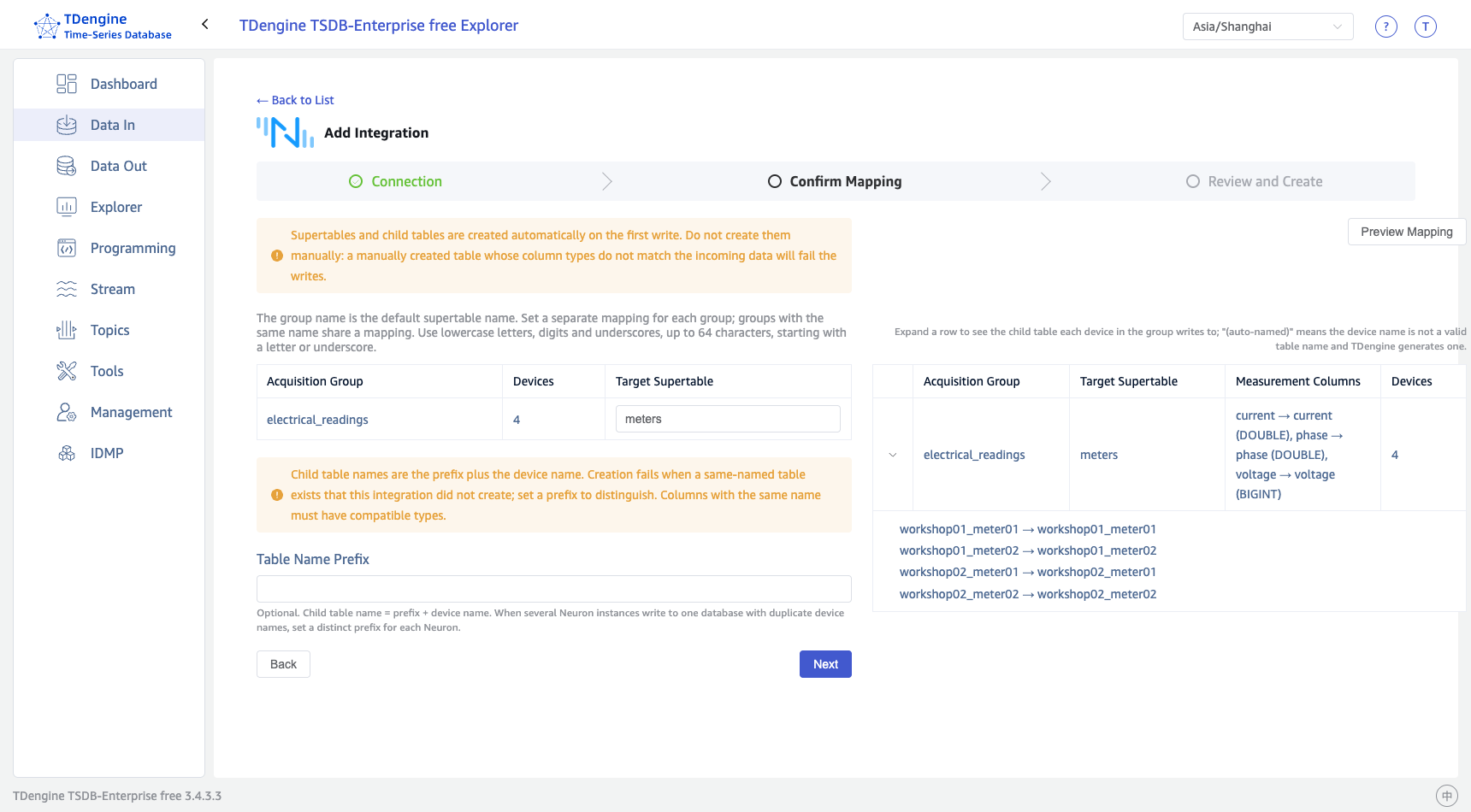
Confirming collection group and column mappings
4. Review and Create
The confirmation page summarizes the configuration to be created: Neuron address, eKuiper stream, TDengine address, target database, subtable naming rule, fixed tags, and write account. Review it and click Create Integration.
Explorer automatically performs the following:
- Creates or reuses the shared eKuiper stream (one stream is shared by all Neuron integrations);
- Creates an InfluxDB v1 write rule for each collection group, with the sink cache enabled and batching at 1,000 rows or 100 ms;
- Adds missing collection subscriptions (Neuron northbound subscriptions), leaving existing subscriptions unchanged;
- Checks subtable naming conflicts and refuses to create the integration with an explanatory message when a same-named subtable belongs to someone else.
Existing eKuiper configuration is never overwritten or deleted automatically. Rules write data using your current TDengine login account; after changing that account's password, click Refresh Configuration on the detail page to update the rules.
5. Check Status and Logs
After creation, the detail page opens: the upper part shows the integration configuration and mappings, and the Execution Log panel below shows the latest 10 configuration and verification records, newest first.
A status of Verified means the rules are running and new data keeps appearing in every subtable. Other statuses: Configuring/Verifying means a background task is running; Configuration Preserved; Verification Pending means the configuration has been delivered but new data has not been observed yet; Failed/Interrupted — check the logs for the cause and retry.
The detail page provides two actions:
- Refresh Configuration: Re-delivers the stream and rules with the original configuration. Use it to recover after changing the TDengine password or after the rules are modified or deleted on the eKuiper side.
- Check Data: Runs data verification again to check whether each subtable has new data.
After configuration, data is written by Neuron through eKuiper directly to TDengine and does not depend on Explorer staying online; closing the Explorer page does not affect collection.
Further Reading
- To define custom tags, business attributes, or data transformation, use Manual Onboarding.
- For ingestion verification SQL, operation monitoring, Store-and-Forward, mTLS and high availability deployment, performance reference, and troubleshooting, see Integration with Neuron.