Kafka
The features or components discussed in this document are available in TDengine TSDB-Enterprise only. TDengine TSDB-OSS does not include these features or components.
Apache Kafka is a high-throughput, scalable distributed message queue system that is widely used for real-time data ingestion, log delivery, stream processing, and event-driven architectures. TDengine can publish TMQ data messages and metadata messages to Kafka so that time-series data can be forwarded to data platforms, real-time computing engines, and downstream business systems.
After you create a Kafka data publishing task in TDengine Explorer, the system reads messages from the specified TMQ topic and publishes them to one or more Kafka topics based on your configuration. You can control data messages and metadata messages separately, and you can run connectivity checks and message previews before saving the task.
Ensure Enterprise Services Are Running Normally
- Ensure that the
taosdservice is running normally. - Ensure that the
taosAdapterservice is running normally. - Ensure that
taosxis installed (taosx --version) so that data publishing is available.
Prepare the Kafka Environment
Before creating the publishing task, prepare an accessible Kafka cluster and confirm the following information:
- Kafka
Bootstrap Servers - Whether the target topic already exists
- Any SASL or SSL parameters and certificate files required for authentication
- Whether the broker allows automatic topic creation and whether the current account has the required permissions
Prepare Data
Use the taos CLI tool or the Explorer management interface to execute SQL statements, create a database, create a supertable, create a topic, and insert test data for the publishing task. A simple example is shown below:
create database db vgroups 1;
create table db.meters (ts timestamp, f1 int) tags(t1 int);
create topic topic_meters as select ts, tbname, f1, t1 from db.meters;
insert into db.tb using db.meters tags(1) values(now, 1);
For more details about topic definitions, consumption offsets, and subscription parameters, see Data Subscription.
Create a Kafka Data Publishing Task
In Explorer, go to the Data Publisher page, choose Kafka as the target type, and complete the following configuration steps in order:
- Enter the task name.
- Configure TDengine TMQ subscription parameters.
- Configure Kafka connection parameters.
- Configure the data topic, metadata topic, and message key templates.
- Configure advanced options if needed.
- Run connectivity checks and previews.
- Save the task and start publishing.
After the task is created successfully, it generally runs in the following order:
- Subscribe to messages from the TMQ address specified by
Topic DSN. - Decide which messages to read based on
Enable Data SubscriptionandEnable Meta Subscription. - Connect to the target Kafka cluster.
- Publish data messages to the data topic and metadata messages to the metadata topic.
- If automatic topic creation is enabled, attempt to create the target topic when it does not exist.
- Run connectivity checks and previews before saving to validate the link and message format.
Basic Configuration

The image above shows the basic information section for a Kafka data publishing task.
Task Name
- Default: None.
- Required: Yes.
- Purpose: Identifies the current data publishing task.
- Recommendation: Include the source topic, target purpose, and environment so that the task is easier to identify during operations.
Examples:
prod-device-data-to-kafkatmq_order_meta_to_kafka
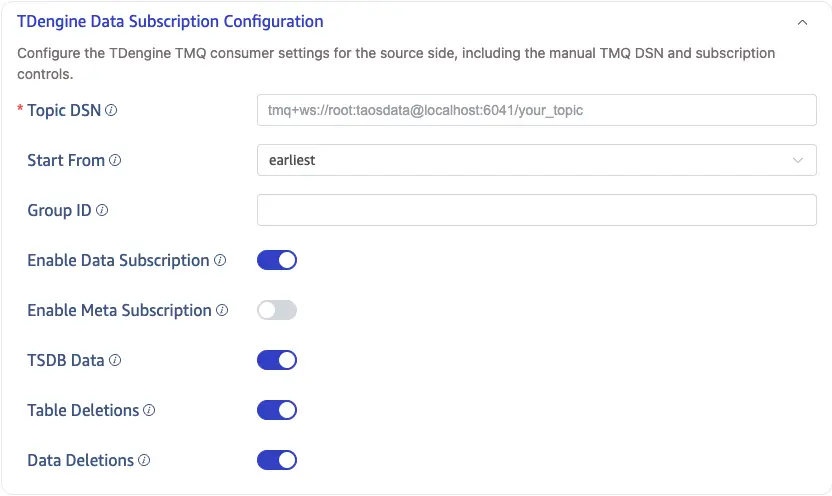
The image above shows the TDengine TMQ subscription parameters and subscription controls.
Topic DSN
- Default: None.
- Required: Yes.
- Purpose: Specifies the full TMQ connection address. This is the data source for the task.
- Recommendation: Include key subscription parameters such as
group.idandauto.offset.resetexplicitly so that task behavior remains predictable. - Common format:
tmq+ws://root:taosdata@localhost:6041/topic_meters
Common subscription parameters include:
group.id: Consumer group ID. It is recommended to set this explicitly in production.auto.offset.reset: The consumption start position. In Explorer, this is controlled by the separate requiredStart Fromfield, which maps toearliestorlatest.with.meta: Whether to synchronize metadata.with.meta.delete: Whether to synchronize delete-data events in metadata.with.meta.drop: Whether to synchronize drop-table events in metadata.experimental.snapshot.enable: Whether to synchronize data that has already been persisted.
Example:
tmq+ws://root:taosdata@localhost:6041/topic_meters?group.id=pub-kafka-demo&auto.offset.reset=earliest&with.meta=true
Start From
- Default: None.
- Required: Yes.
- Purpose: Specifies the initial consumption position when the consumer starts for the first time or when no committed offset exists.
- Recommendation: Use
earliestfor initial verification or replaying historical data, and preferlatestfor long-running online tasks. - Supported values:
earliest,latest. earliest: Starts consuming from the earliest readable position. This is suitable for initial full verification or replaying historical data.latest: Consumes only newly arriving messages. This is suitable for long-running publishing tasks in production.
Group ID
- Default: Empty. The system usually generates one automatically.
- Required: No.
- Purpose: Identifies the TMQ consumer group.
- Recommendation: Use a fixed value in production so that consumption offsets and restart behavior stay predictable.
Enable Data Subscription
- Default: Enabled.
- Required: No.
- Purpose: Controls whether row data messages from TMQ are published.
- Recommendation: Keep it enabled by default. Disable it only when the task is intended to publish metadata only.
- When enabled,
Data Topicmust be configured before submission.
Enable Meta Subscription
- Default: Disabled.
- Required: No.
- Purpose: Controls whether metadata messages such as table creation, table deletion, and schema changes are published.
- Recommendation: Enable it only when downstream systems need table lifecycle or schema change events.
- When only metadata subscription is enabled,
Meta Topicmust be configured.
TSDB Data
- Default: Enabled.
- Required: No.
- Purpose: Controls whether persisted TSDB data is also subscribed, not only data that is still in WAL.
- Recommendation: Decide based on your upstream TMQ design and business goals.
Table Deletions
- Default: Enabled.
- Required: No.
- Purpose: Controls whether drop-table events are forwarded.
- Recommendation: Keep it enabled only when downstream systems need synchronized table lifecycle events.
Data Deletions
- Default: Enabled.
- Required: No.
- Purpose: Controls whether delete-data events are forwarded.
- Recommendation: Keep it enabled only when downstream systems need synchronized delete events.
Kafka Connection Configuration

The image above shows the Kafka broker connection and authentication section.
Bootstrap Servers
- Default: None.
- Required: Yes.
- Purpose: Specifies the Kafka broker address list.
- Recommendation: Configure at least two reachable broker addresses to improve availability.
- Separate multiple addresses with commas.
Example:
127.0.0.1:9092,127.0.0.1:9093
Additional recommendation:
- Use network addresses that are reachable from the client environment.
SASL Authentication
- Default: Disabled.
- Required: No.
- Purpose: Configures the SASL authentication mechanism and related parameters for the Kafka broker.
- Recommendation: Enable it only when the Kafka cluster requires SASL authentication, and ensure the selected mechanism matches the broker configuration.
Supported authentication mechanisms include:
PLAINSCRAM-SHA-256GSSAPI
Configuration rules:
- If no mechanism is selected, SASL is disabled.
- If
PLAINorSCRAM-SHA-256is selected, you must configure a username and password. - If
GSSAPIis selected, you must configure Kerberos-related parameters.
PLAIN or SCRAM-SHA-256
Required fields:
- Username
- Password
GSSAPI
Required fields:
- Kerberos service name
- Kerberos principal
- Kerberos initialization command
- Kerberos keytab file
Example command:
kinit -R -t '%{sasl.kerberos.keytab}' -k %{sasl.kerberos.principal}
SSL Authentication
- Default: Disabled.
- Required: No.
- Purpose: Configures SSL certificate validation and mutual authentication parameters for the Kafka broker.
- Recommendation: When TLS is enabled in production, verify the certificate chain, certificate password, and private key in advance.
- When enabled, you must configure certificate files such as CA, client certificate, and client private key.
- Certificate files usually use PEM format.
Common parameters include:
- CA
- CA password
- Client certificate
- Client private key
Kafka Publishing Configuration
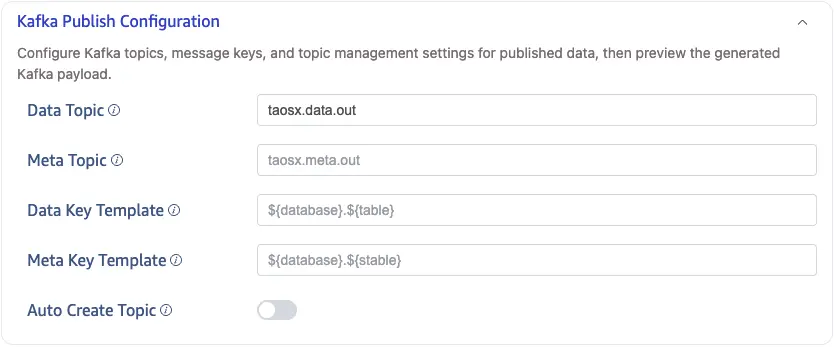
The image above shows the Kafka topic, message key, and topic management section.
Data Topic
- Default:
taosx.data.out - Required: Yes when
Enable Data Subscriptionis enabled; otherwise No. - Purpose: Defines the Kafka topic for data messages.
- Recommendation: Include environment, business domain, or source table information in the topic name to simplify downstream routing and operations.
Supported template variables:
${database}: Source database name${table}: Subtable name or normal table name${stable}: Supertable name${tmq_topic}: TMQ topic name${vgroup_id}: vgroup ID${offset}: Message offset
Examples:
taosx.data.outdata.${database}.${table}
Meta Topic
- Default: Empty.
- Required: Yes only when metadata subscription is enabled and data subscription is disabled; otherwise No.
- Purpose: Defines the Kafka topic for metadata messages.
- Recommendation: Use a separate topic when metadata and data should be routed independently. Otherwise, you can reuse
Data Topic. - If left empty, it falls back to
Data Topic.
Data Key Template
- Default: Empty.
- Required: No.
- Purpose: Defines the Kafka key for data messages.
- Recommendation: If you need partitioning by database, table, or device, configure a stable key template.
Available template variables:
${database}${table}${stable}${tmq_topic}${vgroup_id}
Example:
${database}.${table}
Meta Key Template
- Default: Empty.
- Required: No.
- Purpose: Defines the Kafka key for metadata messages.
- Recommendation: Reuse
Data Key Templatewhen metadata should follow the same partitioning strategy. - If left empty, it defaults to
Data Key Template.
Auto Create Topic
- Default: Disabled.
- Required: No.
- Purpose: Attempts to create the target topic automatically when it does not exist in Kafka.
- Recommendation: Enable it only when the broker allows automatic topic creation and the current account has sufficient permissions.
- Whether creation succeeds still depends on Kafka broker settings and the permissions of the current account.
When enabled, you can additionally configure:
- Topic partitions
- Replication factor
Topic Partitions
- Default: Empty. The broker default configuration is used.
- Required: No.
- Purpose: Specifies the partition count when topics are created automatically.
- Recommendation: Plan the partition count according to downstream consumer concurrency and expected throughput.
- Display condition: Visible only when
Auto Create Topicis enabled. - Value range: 1 to 1024.
Replication Factor
- Default: Empty. The broker default configuration is used.
- Required: No.
- Purpose: Specifies the replication factor when topics are created automatically.
- Recommendation: Set it to a value that does not exceed the number of available brokers and is consistent with the cluster high-availability strategy.
- Display condition: Visible only when
Auto Create Topicis enabled. - Value range: 1 to 128.
- This value cannot exceed the number of available brokers in the Kafka cluster.
Advanced Options

The image above shows the Kafka producer concurrency, batching, and extra parameter section.
Parallelism
- Default:
1 - Required: No.
- Purpose: Controls the maximum Kafka producer concurrency.
- Recommendation: Start from 1 or 2 and increase gradually in high-throughput scenarios.
- Value range: 1 to 128.
Queue Timeout (ms)
- Default:
30000 - Required: No.
- Purpose: The maximum waiting time after a message enters the sending queue.
- Recommendation: Increase it when the network is unstable, or reduce it when fast failure is preferred.
Batch Size
- Default:
1000 - Required: No.
- Purpose: The maximum number of records in each Kafka batch.
- Recommendation: Increase it gradually for throughput-oriented workloads and keep it smaller for low-latency workloads.
- Value range: 1 to 100000.
Batch Timeout (ms)
- Default:
1000 - Required: No.
- Purpose: The maximum waiting time before a batch is sent.
- Recommendation: Increase it for throughput-oriented workloads and reduce it for lower latency.
Kafka Extra Parameters
- Default: Empty.
- Required: No.
- Purpose: Configures additional Kafka producer parameters beyond the standard fields.
- Recommendation: Set only Kafka native parameters that you understand clearly, and avoid conflicts with standard fields.
Example:
compression.type=zstd
acks=all
linger.ms=100
Common use cases include:
- Enabling message compression
- Setting
acks - Tuning sending strategies such as
linger.ms
Validation Rules Before Saving
The following logical checks are typically performed before the task can be submitted:
Topic DSNmust be filled in, andStart Frommust be selected explicitly.Enable Data SubscriptionandEnable Meta Subscriptioncannot both be disabled.- If data subscription is enabled,
Data Topicmust be filled in. - If data subscription is disabled but metadata subscription is enabled,
Meta Topicmust be filled in. - TMQ and Kafka connectivity checks are run before submission. If the check fails, the task cannot be saved.
Some fields are displayed dynamically based on other settings. For example:
- If no SASL mechanism is selected, detailed SASL fields are hidden.
- If SSL authentication is disabled, SSL certificate fields are hidden.
- If
Auto Create Topicis disabled, the partitions and replication factor fields are hidden.
Connectivity Check and Preview
Connectivity Check

The image above shows the entry point for connectivity checks before saving the task.
Before saving or previewing, it is recommended to run the connectivity check to verify:
- Whether the TMQ address is reachable
- Whether the Kafka broker address is reachable
- Whether SASL or SSL parameters are correct
- Whether the required topics and permissions are available
If the check fails, verify the network, authentication, address, and permission configuration first.
Preview

The image above shows the settings for preview row count and wait time.
Before saving the task, you can use the preview feature to inspect sample Kafka messages that will be generated.
Common preview parameters include:
- Rows: default
1, range1to100 - Wait time (seconds): default
30, range1to300
The preview result typically shows the following fields:
topickeyvalue
If no data is received within the wait time, the system indicates that no previewable message is available under the current conditions.

The image above shows the Kafka publishing preview result section.
Verify the Publishing Result
After the task is saved and started, you can use Kafka built-in tools or third-party clients to verify whether messages are published correctly.
For example, use kcat to consume from the target topic:
kcat -b 127.0.0.1:9092 -t taosx.data.out -C
If a key template is configured, the consumer output usually includes both the message key and the message body. You can verify the publishing result by checking the source database, table name, topic template, and offset fields together.