pSpace
This section describes how to create data migration/data synchronization tasks through the Explorer UI to migrate/synchronize data from pSpace to the current TDengine TSDB cluster.
Feature Overview
TDengine TSDB can efficiently read data from pSpace and write it to TDengine TSDB for historical data migration or real-time data synchronization.
Create a Task
1. Add a New Data Source
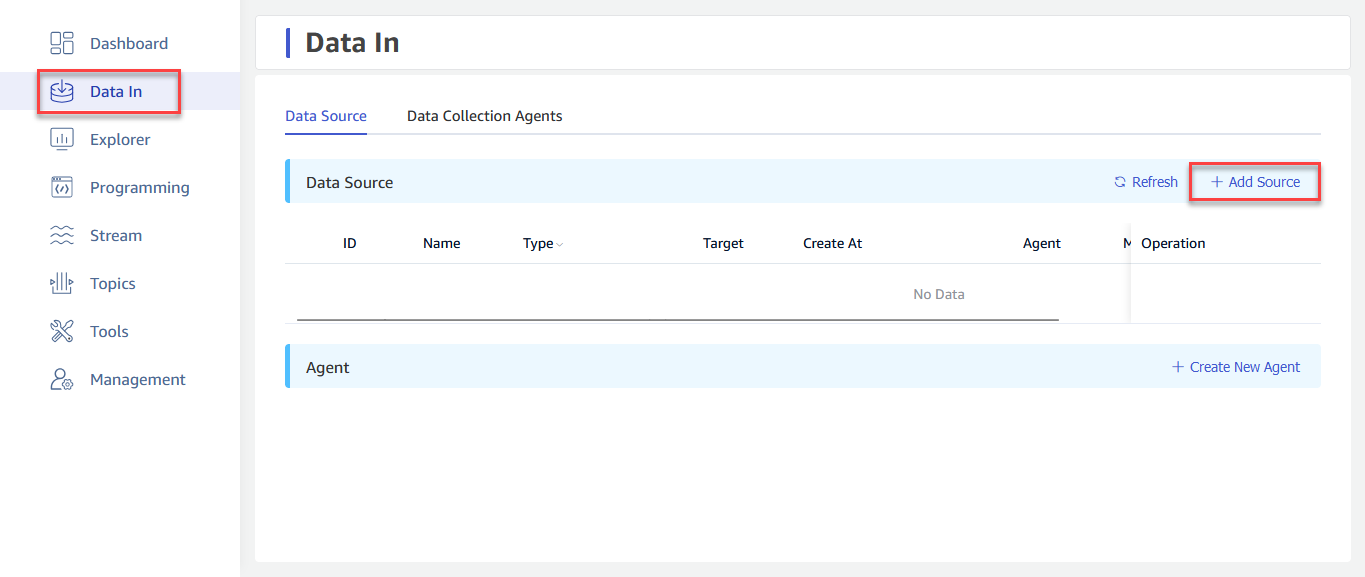
On the Data In page, click + Add Data Source to enter the Add Data Source page.
2. Configure Basic Information
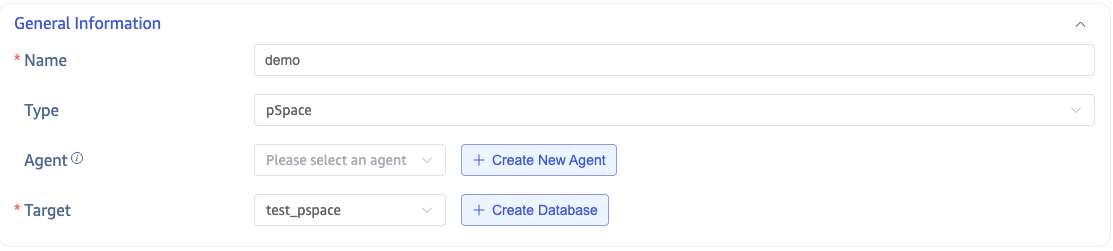
In Name, enter a task name, for example: "test_pspace".
In the Type drop-down list, select pSpace.
Proxy is optional. If needed, select a proxy from the drop-down list, or click + Create New Proxy on the right first.
In the Target Database drop-down list, select a target database, or click + Create Database on the right first.
3. Configure Connection and Authentication Information
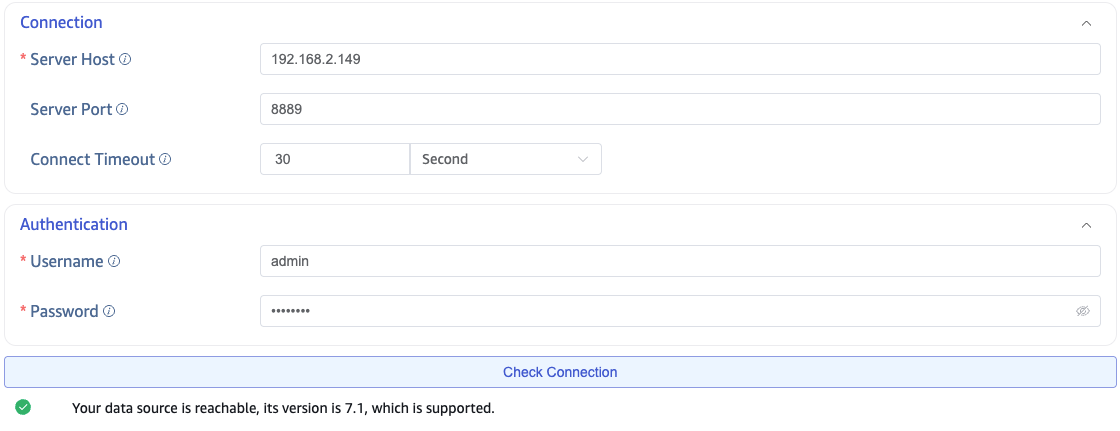
In the Connection Configuration section, fill in Server Address and Server Port.
In the Authentication section, fill in Username and Password.
Click Connectivity Check to verify whether the data source is available.
4. Configure Data Points
4.1. Select Data Points
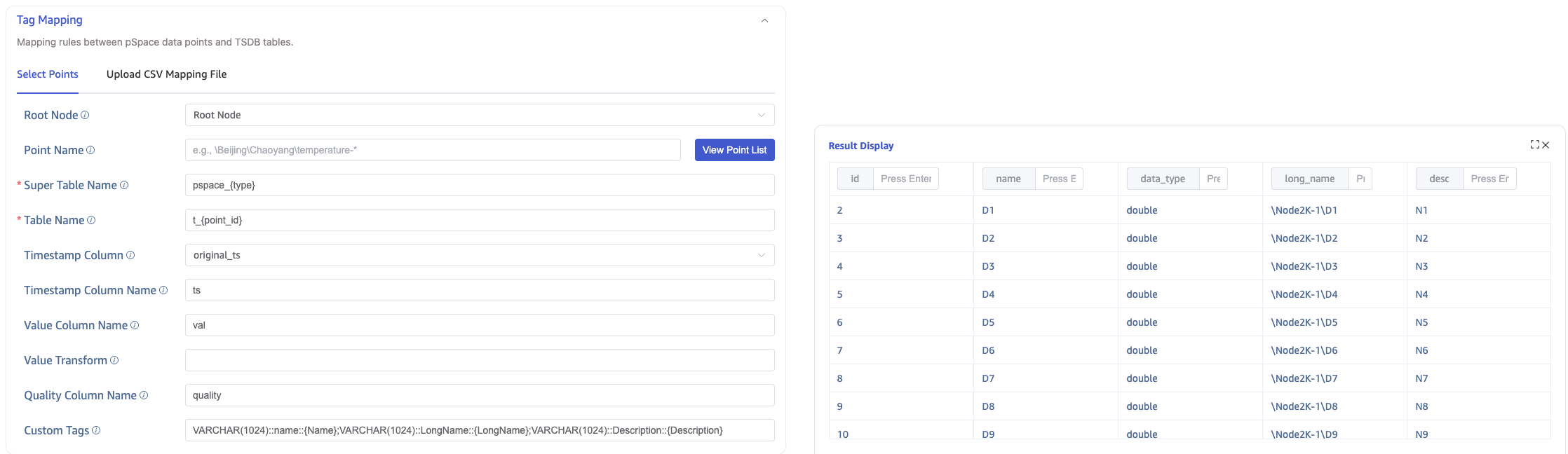
In Data Points, configure the following items:
- Root Node (root): The root node to start traversal from. Enter the LongName of the root node. For example:
\Beijing\Chaoyang\Wangjingmeans traversal starts from\Beijing\Chaoyang\Wangjingand proceeds downward. By default, traversal starts from the root node. - Data Point Name (point_name_pattern): Supports filtering by the LongName of data points. For example:
\Beijing\Chaoyang\Wangjing\temperature-*means all data points under\Beijing\Chaoyang\Wangjingwhose names start with "temperature-". - Super Table Name (super_table_expression): Specifies the super table name for writing data points. Supports the
{type}placeholder. Example:pspace_{type}. - Table Name (child_table_expression): Specifies the subtable name for writing data points. Supports the
{point_id}placeholder. Example:t_{point_id}. - Timestamp Column (table_primary_key): Selects the source of the primary timestamp in the target table. Available values are
original_ts,request_ts, andreceived_ts. - Timestamp Column Name (table_primary_key_alias): Specifies the timestamp column name in the target table. Default is
ts. - Value Column Name (value_col): Specifies the column name for collected values in the target table. Default is
val. - Value Transform (value_transform): Applies an expression transform to values before writing. Example:
(val-32)/1.8. - Quality Column Name (quality_col): Specifies the data quality column name in the target table. Default is
quality. - Custom Tags (custom_tags): Configures tag mappings written to subtables. Supports static values and dynamic extraction from point attributes (for example,
{LongName}).
After configuring Root Node and Data Point Name, click View Data Point List to view matching data points, then continue configuring the remaining mapping rules.
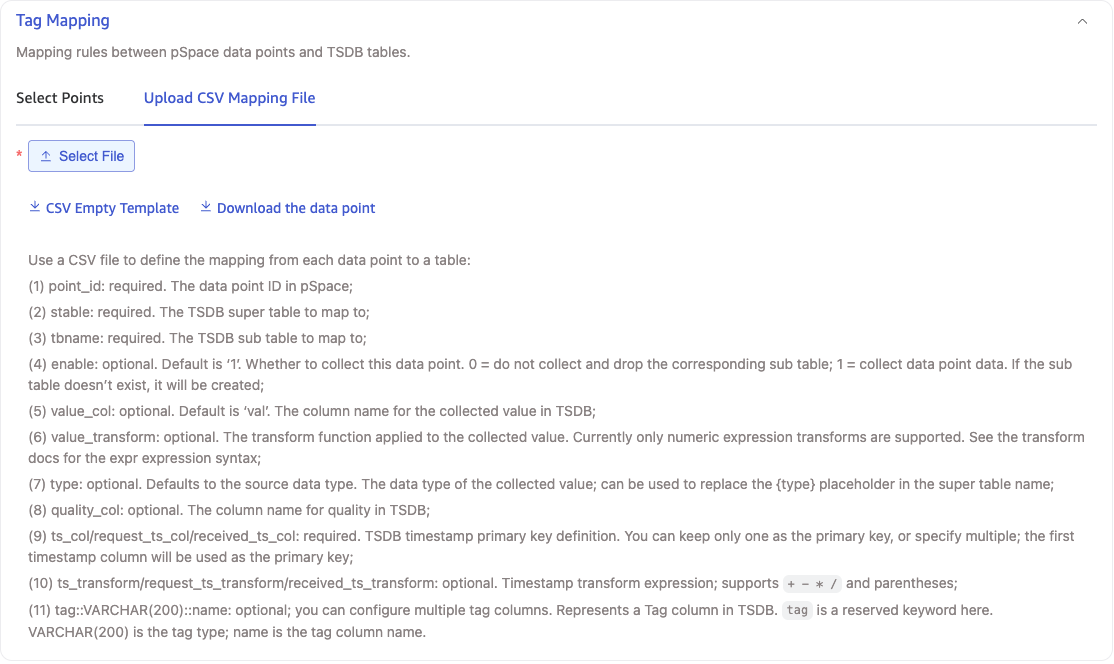
4.2. Upload CSV Configuration File
In Upload CSV Configuration File, click Download Data Points, select the required Root Node and Data Point Name, and a CSV configuration file will be generated and downloaded locally. Modify the generated CSV file as needed and upload it again.
5. Configure Collection
In the Collection Configuration section, fill in collection-related parameters.
pSpace supports three collection modes: Historical Query, Real-time Subscription, and Query Sync.
- Historical Query: Batch query historical data within a time range. The task ends after the query completes.
- Real-time Subscription: Subscribes to real-time changes of data points and keeps running until canceled.
- Query Sync: Completes historical data migration first, then continuously polls new data at a fixed interval.
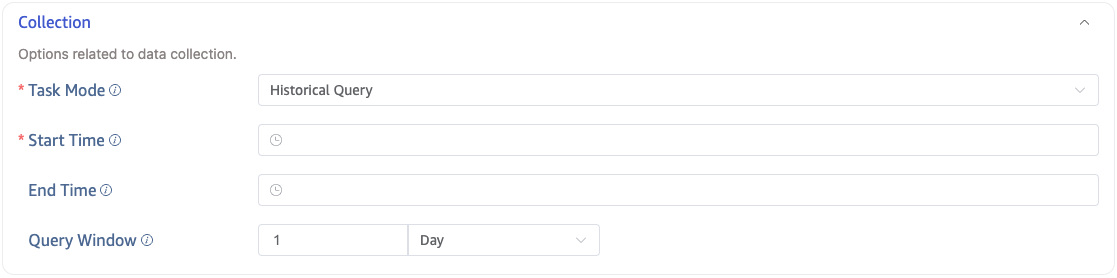
5.1. Historical Query
Select Historical Query mode and configure: Start Time, End Time, and Query Window.
5.2. Real-time Subscription
Select Real-time Subscription mode. No additional parameters are required.
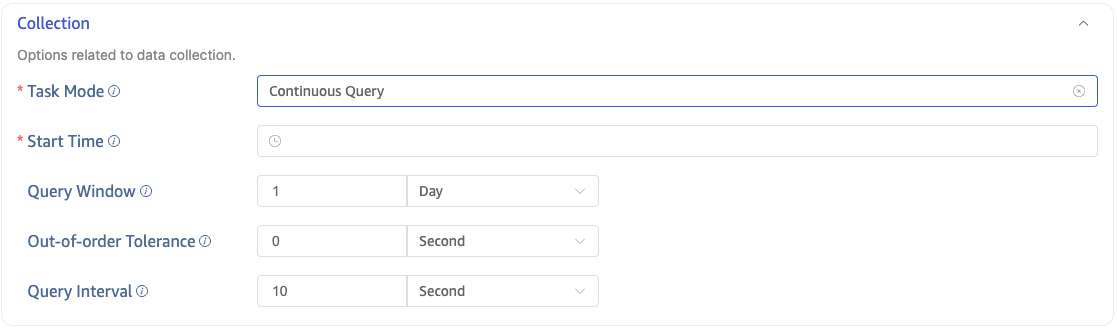
5.3. Query Sync
Select Query Sync mode and configure: Start Time, Query Window, Out-of-order Tolerance, and Query Interval.
6. Configure Advanced Options
In the Advanced Options section, configure other parameters as needed.
7. Complete Creation
Click Submit to complete task creation. After submitting, return to the Data In page to view the task status.